How editing a course affects learners
As an author, making changes to your course is an essential part of the learning process. It allows you to update content, add new information, or refine the learning path based on feedback or new insights. However, it's important to understand how these changes affect learners who are either in progress or have completed the course. This article will guide you through the process of publishing changes in a course and the subsequent effects on learners.
Modifying and Publishing Changes in a course
Learners completed the course already
If a learner has already completed the course and you make some modifications, then publish changes, the learner won't be required to re-take the course or review the new content.
However, if a learner chooses to revise the course, any changes you've made are visible. These appear as incomplete cards from the course navigation menu.
💡 Published changes do not affect the learner's progress once they have completed the course.
Learners still in progress
If a learner is still in progress and you add new content to the course, and then publish these changes, the learner will be required to review and complete the new content to finish the course. The system updates the course progress to reflect the new content, ensuring learners gain the most from your course.
Modifying Existing Lesson
It's important to note that the behaviour described above is not applicable if you only modify an existing lesson or assessments. Changes to existing lesson / assessments do not affect the course completion status or progress for either completed or in-progress learners.
Choose to notify learners
You can also choose to notify learners who have completed the course. Please note this does not impact their progress.
How It Works
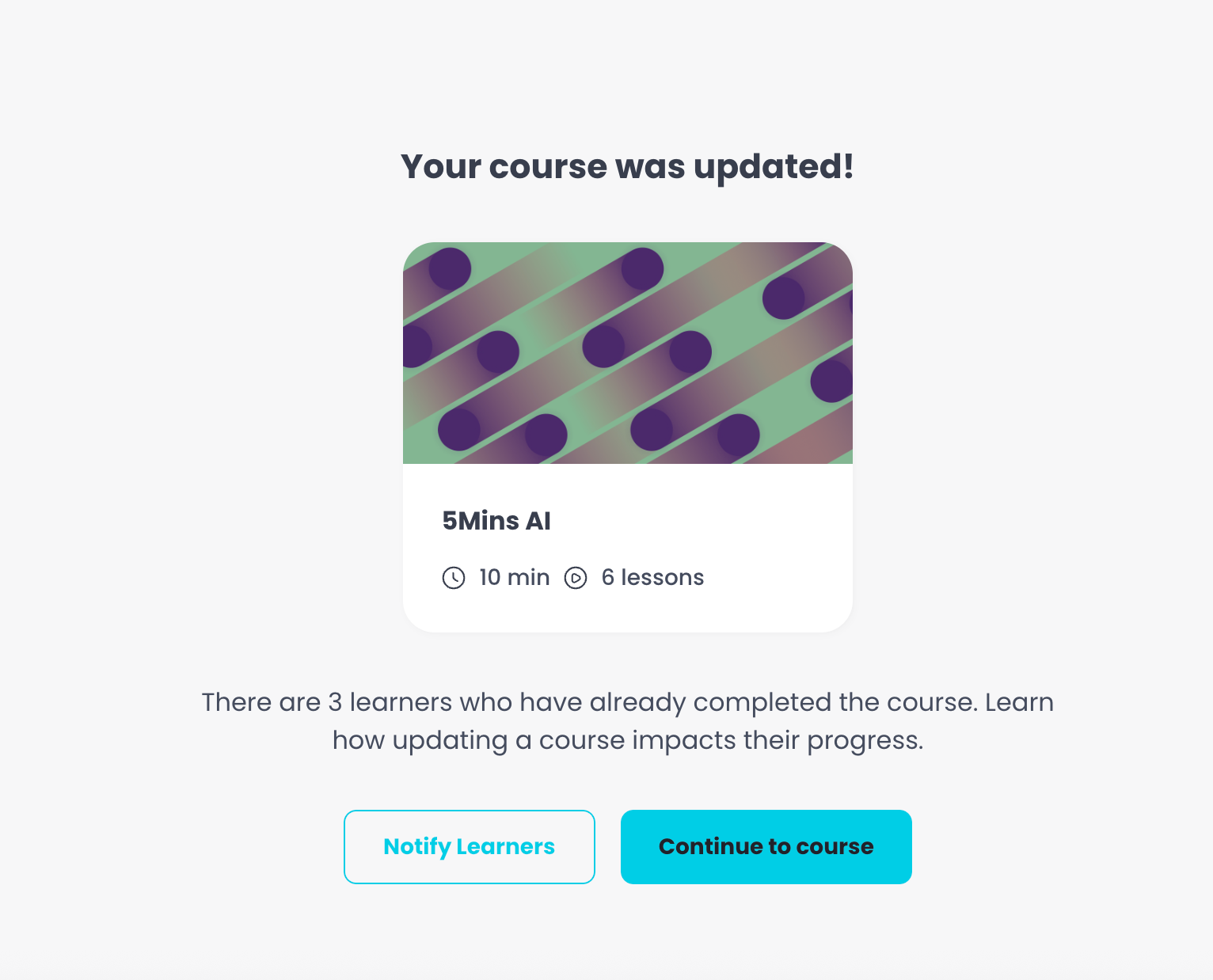
After you click Update Course, a confirmation page ("Your course was updated!") shows how many learners have already completed the Course.
If any have, click Notify Learners. To skip, click Continue to course.
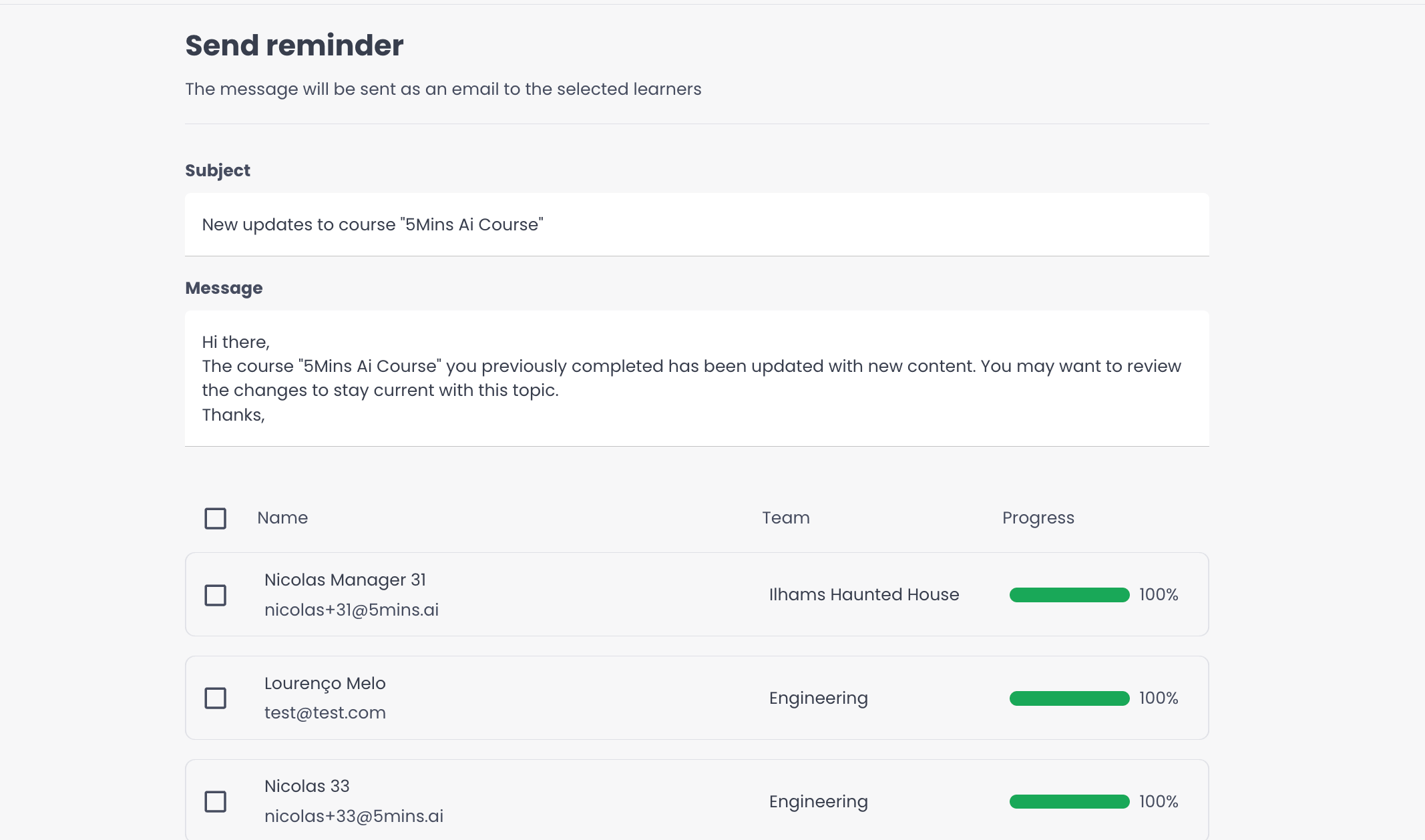
Review the pre-filled Subject (up to 150 characters) and Message (up to 600 characters), and edit them if needed.
Tick the learners you want to email.
Click Send email to [number] Learners. Those learners receive an email letting them know that new content is available.
Who Gets Notified
Only the learners you select. The list shows learners with an active enrolment who had already completed the Course (100% progress) before the update.
What Learners See
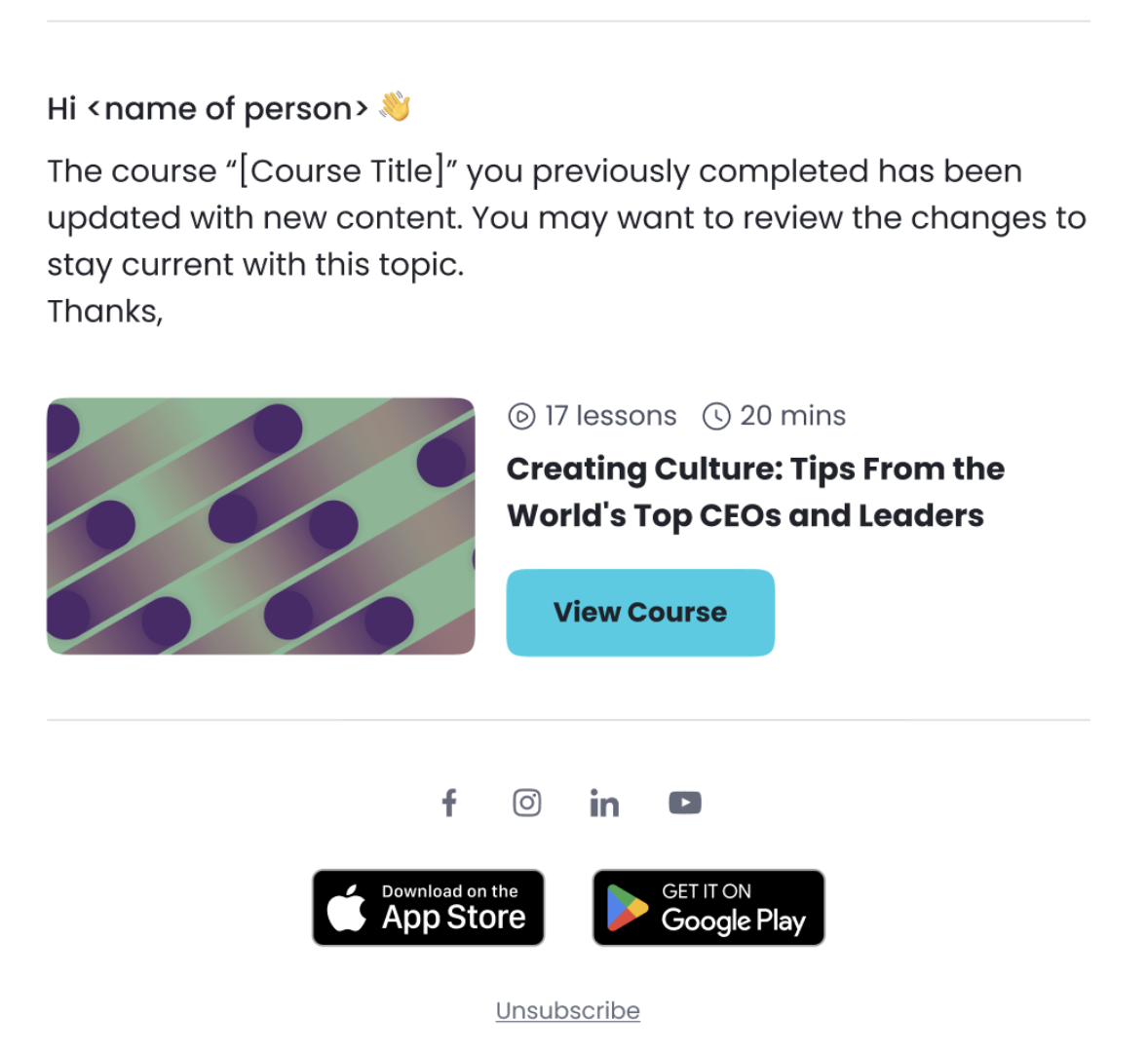
Learners receive an email with the given subject and body
The notification directs them back to the Course page, where they can access any new lessons or assessments added since their last completion.
Best Practices
Use notifications when the Course update includes new lessons, assessments, or major content changes that learners should revisit.
Was this helpful?
Still need help? Ask the team