Navigating 5mins.ai - Detailed guide
For You Page
Your For You page is your personalized learning hub. Here's what you'll find and how to use each section:
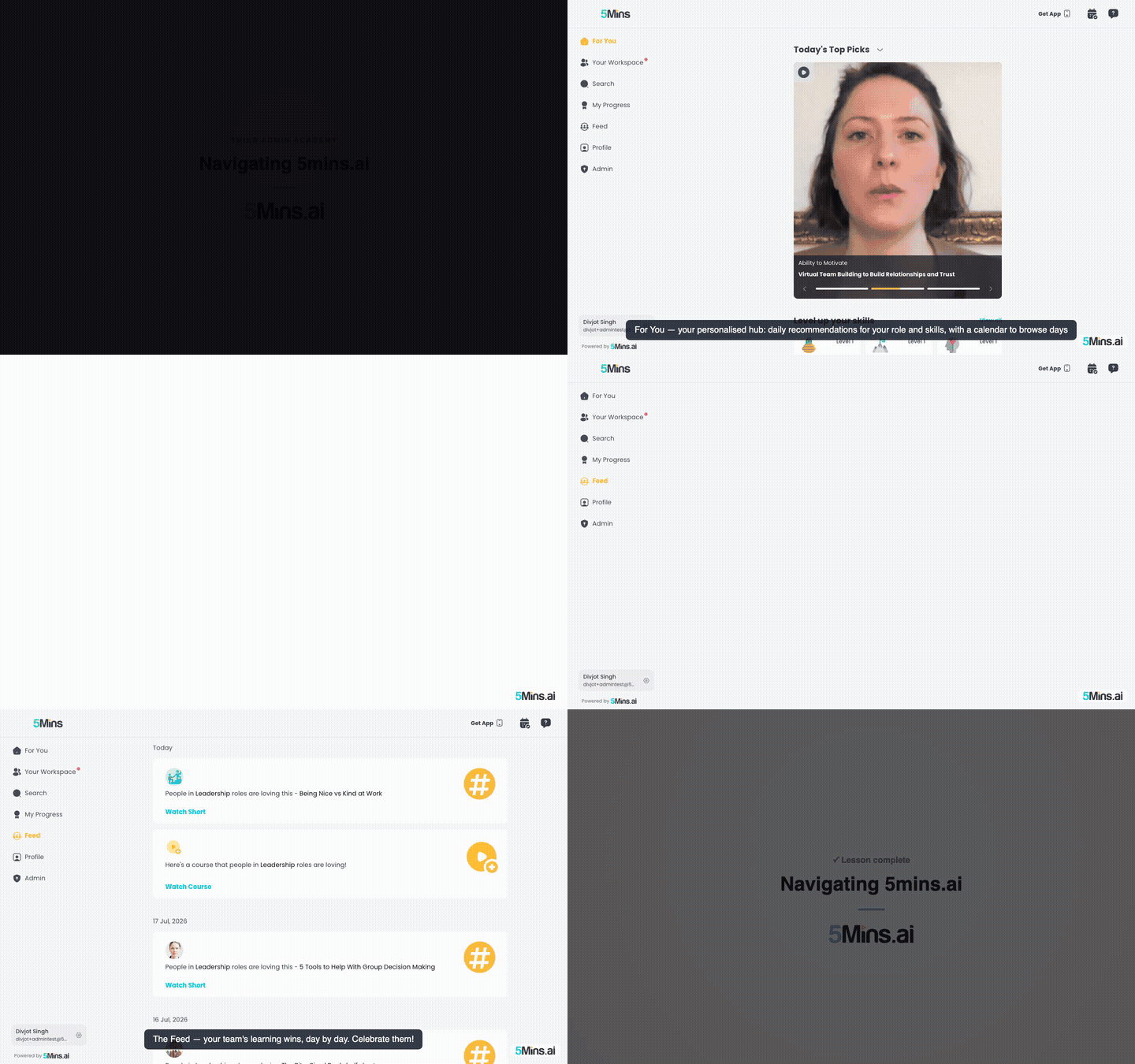
🎬 Watch this as a short narrated video
Steps shown in this video
- For You — your personalised hub: daily recommendations for your role and skills, with a calendar to browse days
- Your Workspace — every course you're enrolled in, with progress and due dates, plus categories to explore
- My Progress — points, jewels and streak, your assignments and skill levels, and the rewards marketplace
- The Feed — your team's learning wins, day by day. Celebrate them!
Calendar Picker
You can navigate between different days using the calendar picker at the top. Click the dropdown to select specific dates, or use the navigation arrows to browse Today, Yesterday, Tomorrow, and other weekdays. Each day has its own curated lesson recommendations waiting for you.
Daily Lesson Recommendations
You'll see personalized content recommendations based on your role and selected skills. These are your main learning suggestions for the day, carefully curated to match your learning goals and professional needs.
Skills Section
You can explore skills-related content suggestions designed to help you develop specific competencies. This section shows opportunities to build the skills you've indicated interest in.
Continue Watching Section ("Jump back in")
If you've started lessons but haven't finished them, you'll see a "Jump back in" section that lets you quickly resume where you left off. You can also click "View history" to see all your past lessons. This section only appears when you have incomplete content.
Your Workspace Page
Your Workspace is where you manage your formal learning commitments:
Course Enrollments
Here you can see all courses you're enrolled in, whether they were assigned to you or you enrolled yourself. You'll see course progress, due dates, and when you have no active courses, you'll see the encouraging message: "Well done! All courses are complete!"
Course Banner
You'll find featured course recommendations that you might want to explore.
Categories
You can browse all available content organized by topic categories to discover new learning opportunities.
Assigned SCORM Courses
If your organization provides external learning content, you can access it here.
Suggested Feed
You may see additional content recommendations (this section can be hidden depending on your organization's setup).
Subject Experts
You can connect with internal experts in your organization and explore their shared content.
My Progress Page
Your progress dashboard helps you track your learning journey with two main areas:
Main Progress Area
- Points - You can view your total learning points, jewels earned, and current streak
- Assignments - You can see your current course enrollments and their progress
- Skills - You can track your skill development and see your current levels
- Marketplace Preview - You can access rewards that you can redeem using your earned jewels
- Leaderboard - You can see team rankings and competitive standings
Knowledge Hub (Team Managers & Subject Experts Only)
If you're a team manager or subject expert, you can access the Knowledge Hub which provides:
Quick Links
- 5Mins Courses - You can explore curated micro-learning courses for your team
- Content Studio - You can manage your own content and browse content from colleagues
- Insights - You can see analytics on how your lessons and courses are being completed
Content Management Features
You can upload videos, PDFs, and external links, create and edit courses, view performance analytics, and manage lesson details.
Feed (Social Learning)
On the Feed page, you can:
- View your team's learning activities organized by date
- See social events grouped by day (Today, Yesterday, etc.)
- Celebrate team member achievements and milestones
- Engage with learning celebrations and interactions