Hibob 5Mins Integration
Instructions
Step One: Create the Service User in your Hibob Account
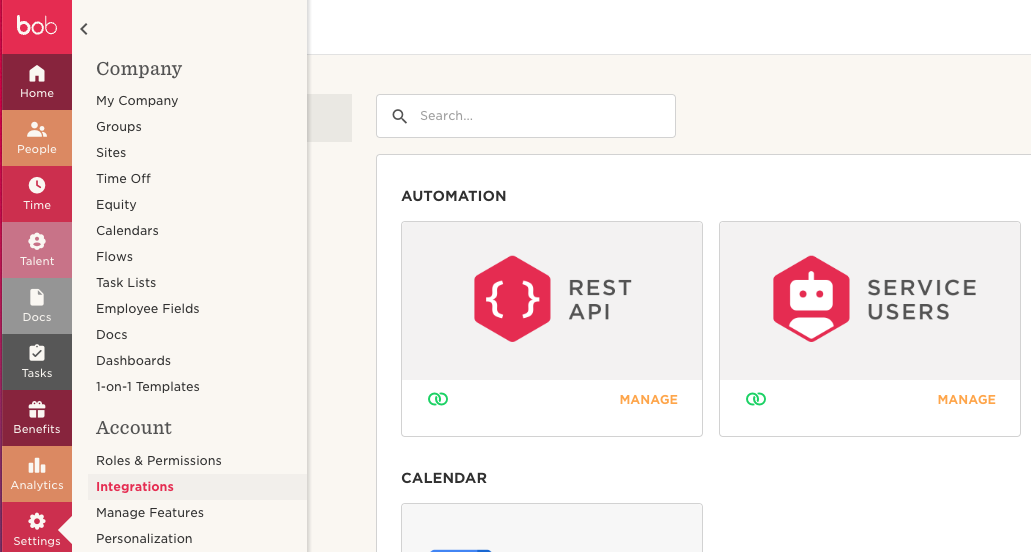
1.) In your settings, go to integrations and click Manage Service Users
2.) Create a new Service User and save the Service User ID and Token
Step Two: Create a Permission Group
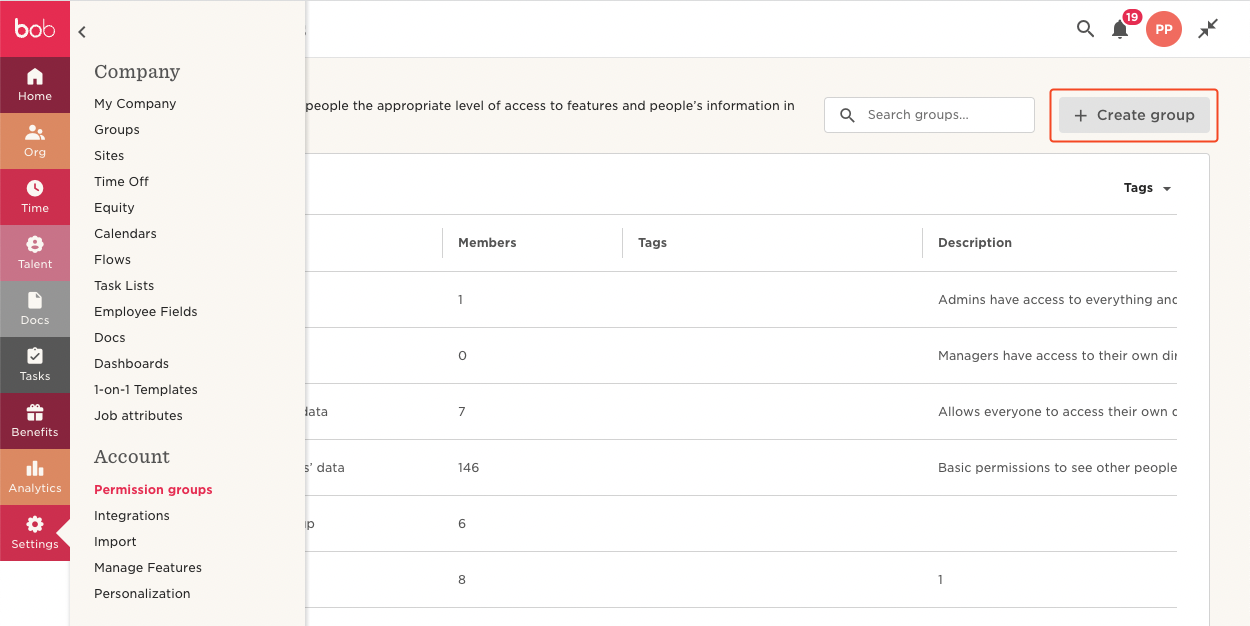
3.) Back in your settings, go to Permission Groups and select Create Group.
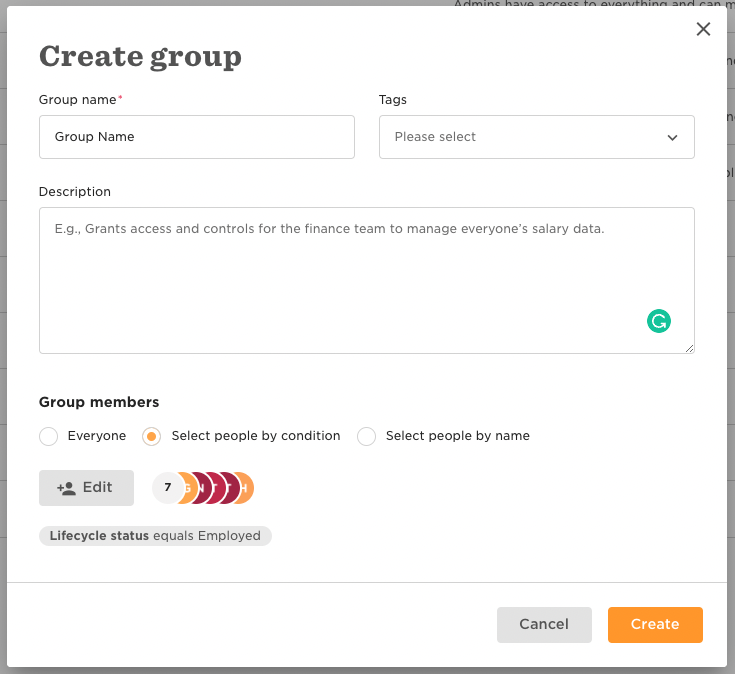
4.) Name the group, then, in the Group members section, choose Select people by condition and select Edit.
5.) In the Select people by condition pop-up, delete the existing condition and add the Service User previously created in the dropdown menu for Add Specific Employees then click Apply.
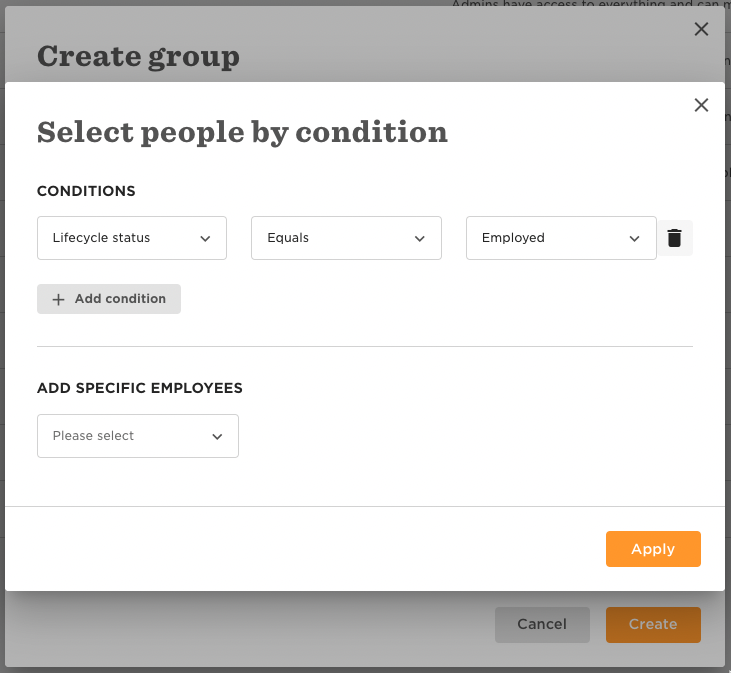
6.) Finish the initial creation of the Group by selecting Create. If a pop-up appears, Confirm the creation of the group.
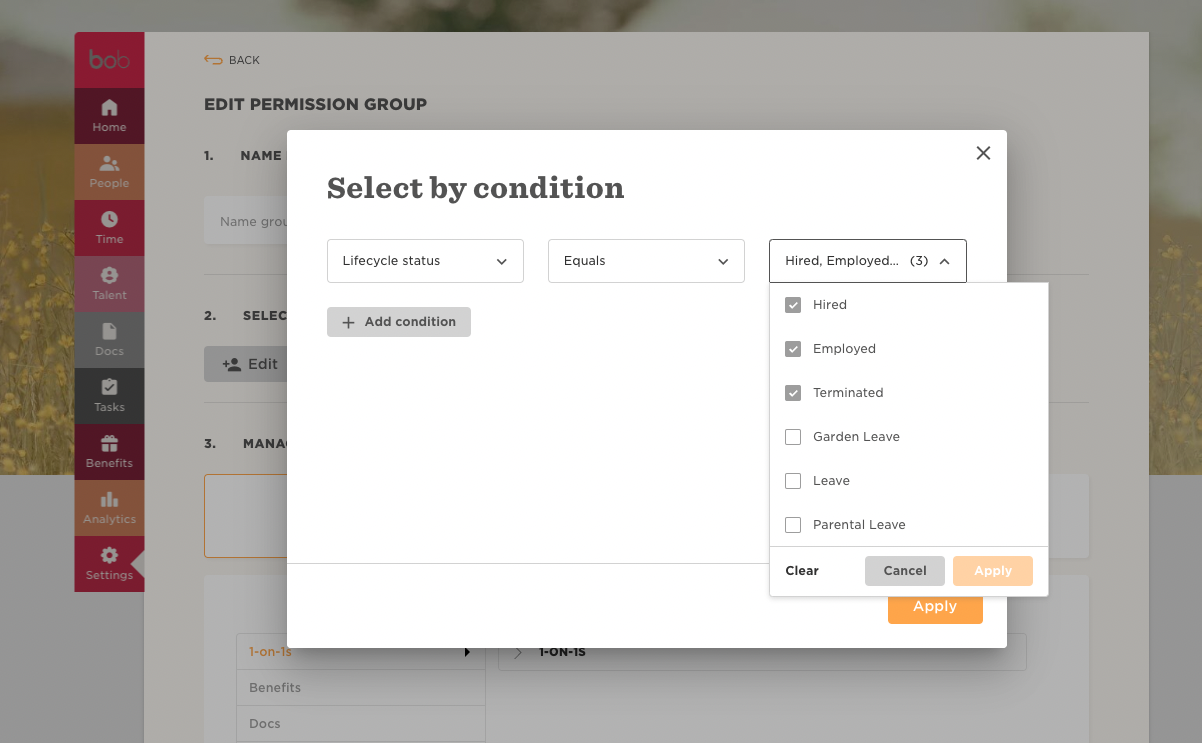
7.) Under People's Data, edit the data that can be accessed by choosing Select people by condition and selecting Edit.
a.) Click Select by Condition
b.) Click Edit
c.) Lifecycle Status = Employed, Hired, Terminated
8.) Under People's Data add the following permissions. Please note the permissions listed below are the required permissions for the full HRIS API.
We do not require payroll, Address, EEO, Home, or Time Off, you do not need to include those!
9.) Click Save and Apply the changes.
Step Three: Link your Hibob account to Merge
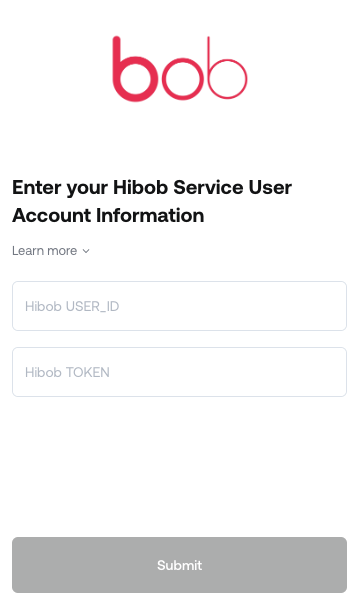
5Mins will send an integration link and you can authenticate with HibOb token ID and user ID
5Mins would read the following data points from HiBob data Objects
Employee
id, first_name, last_name, work_email, employment_status, groups, manager, start_date, home_location, work_location
Group
id, type, parent_group, name
Location
id, name, city, country
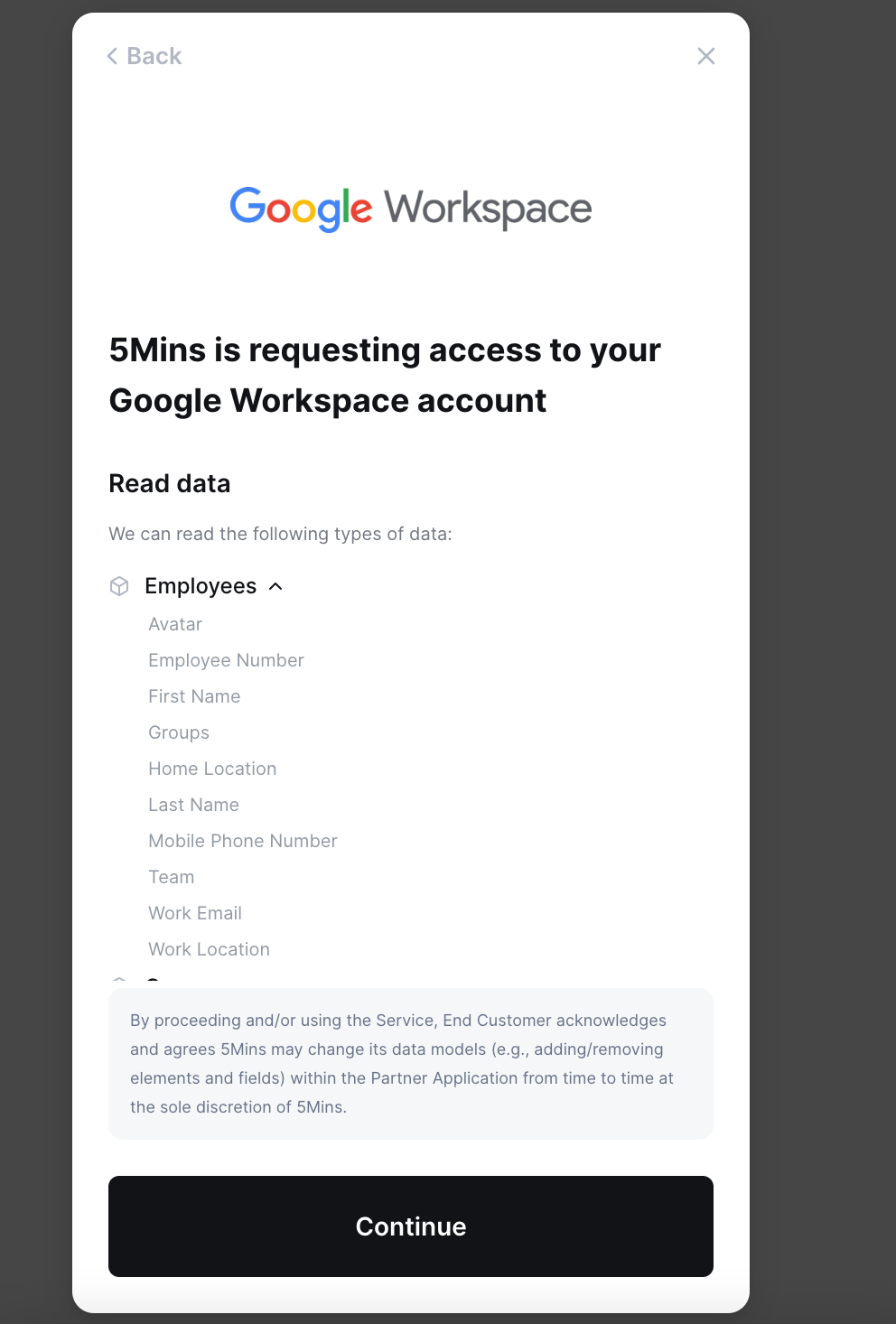
During the Linking Flow, we also have a validation screen that details what the end-user has provided access to 5Mins, and what they have not. The screen would look like this