5Mins UKG Pro Integration
Overview
This guide will walk you through retrieving your Customer API Key and creating a Service User in UKG Pro to complete your linking flow.
Prerequisites
You must be an Administrator in your company's UKG Pro instance, or someone has shared their access with you. The Admin needs to have these data ready for integration:
Customer API Key
Service Account - Userid and Password
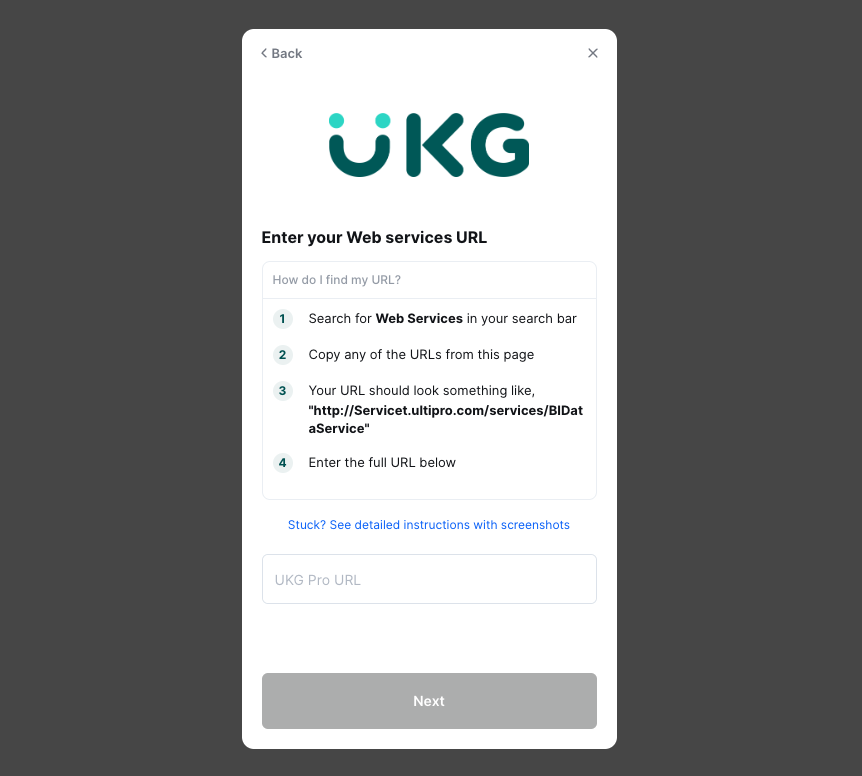
Web service URL
Integration Link
Step 1: Find your UKG Pro Customer API Key
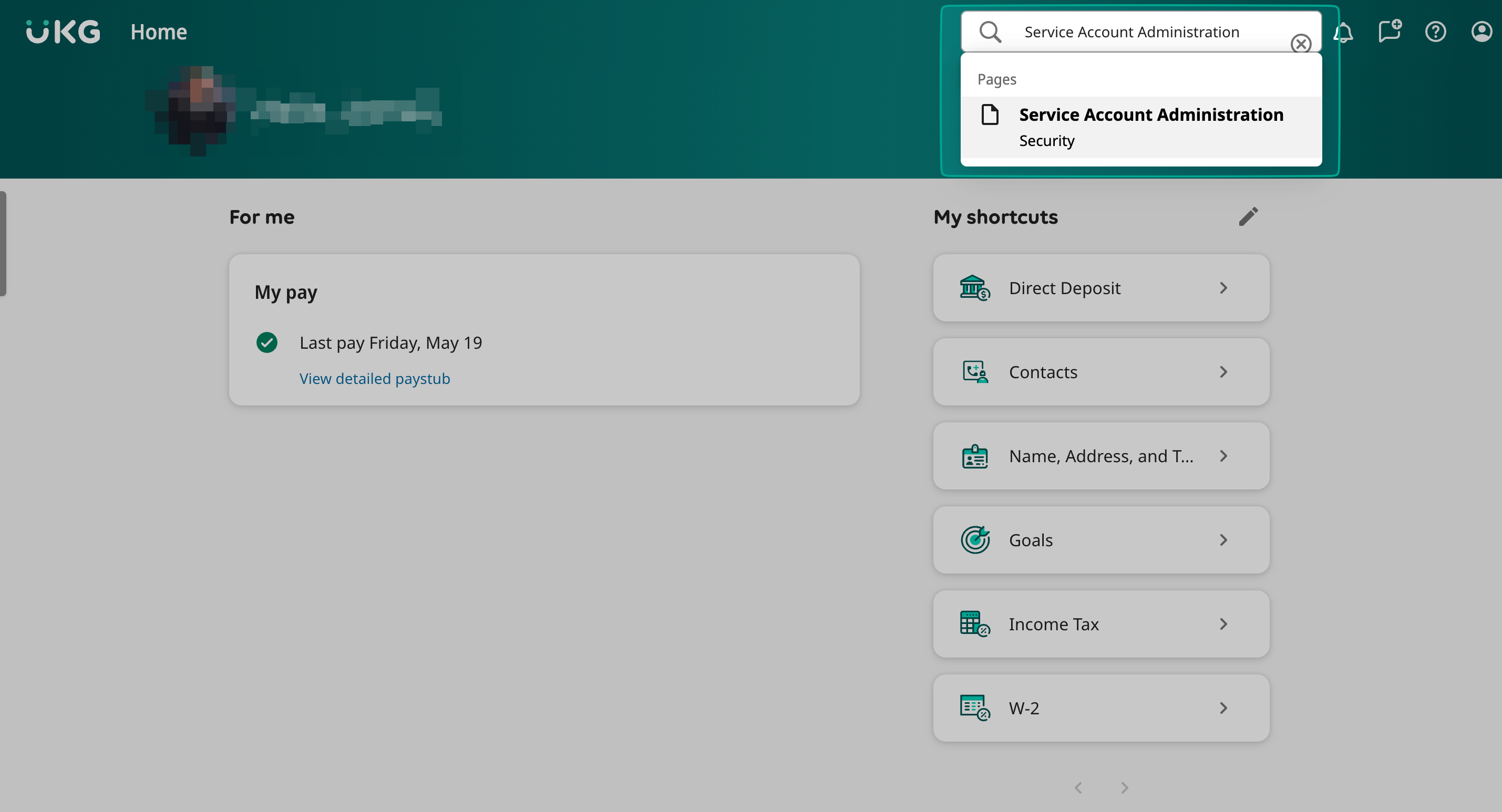
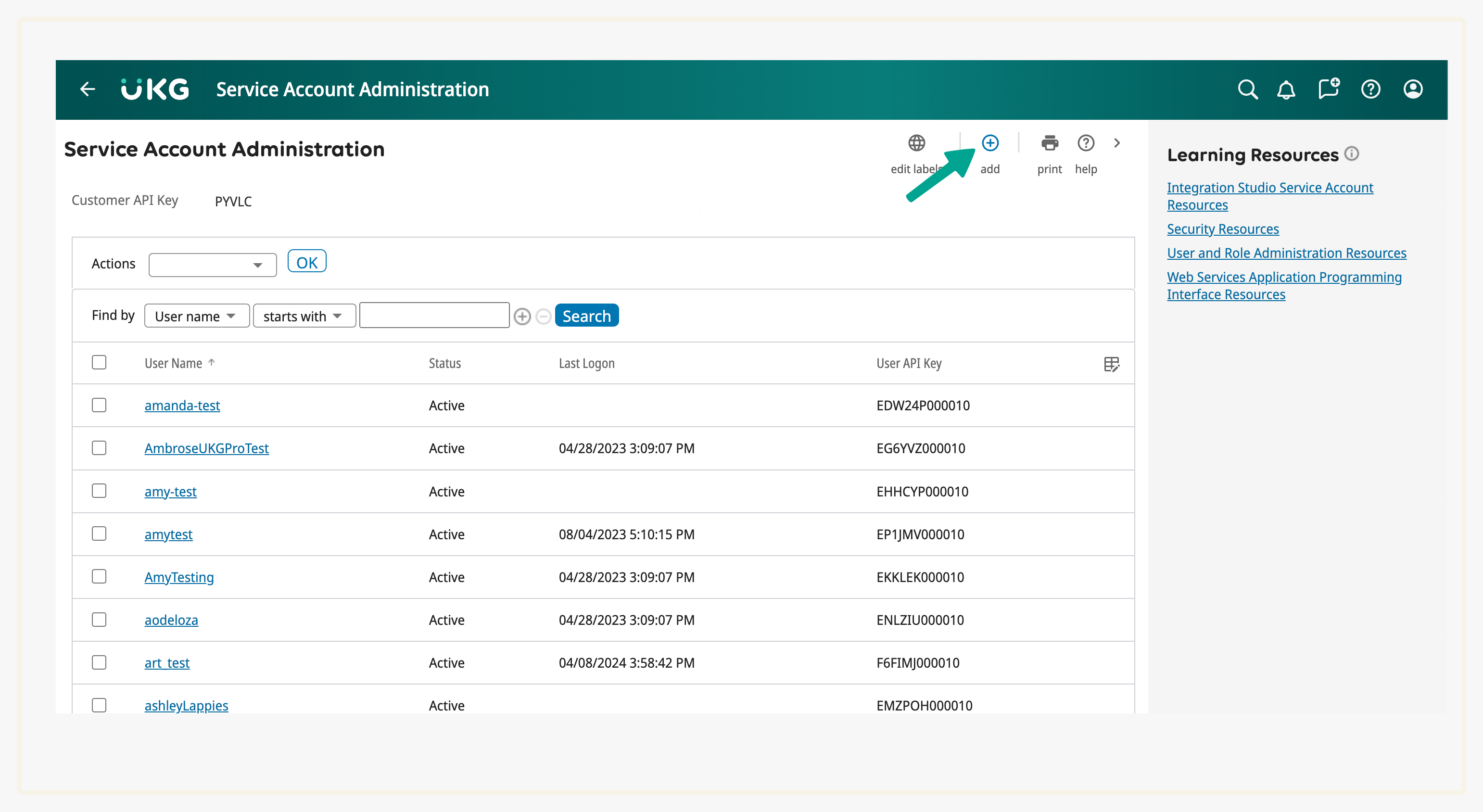
Log in to UKG Pro and search "Service Account Administration" on the top right
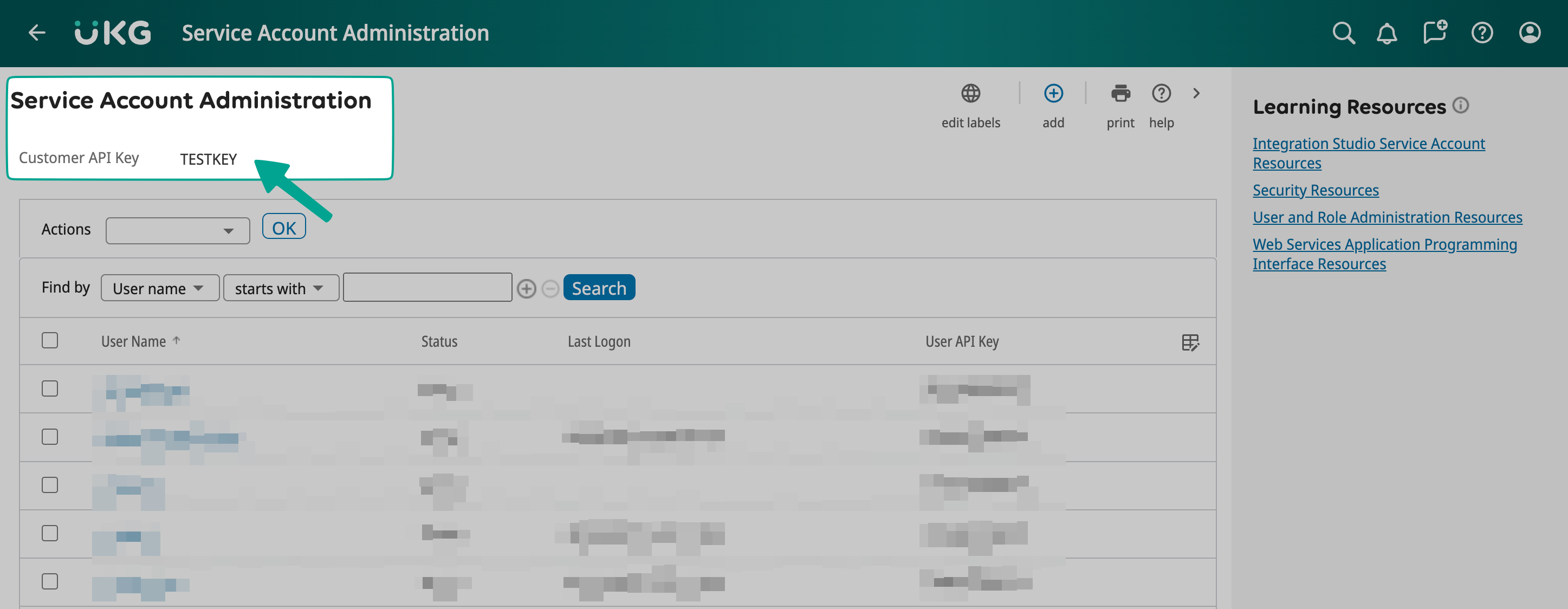
Copy the Customer API Key from under the header
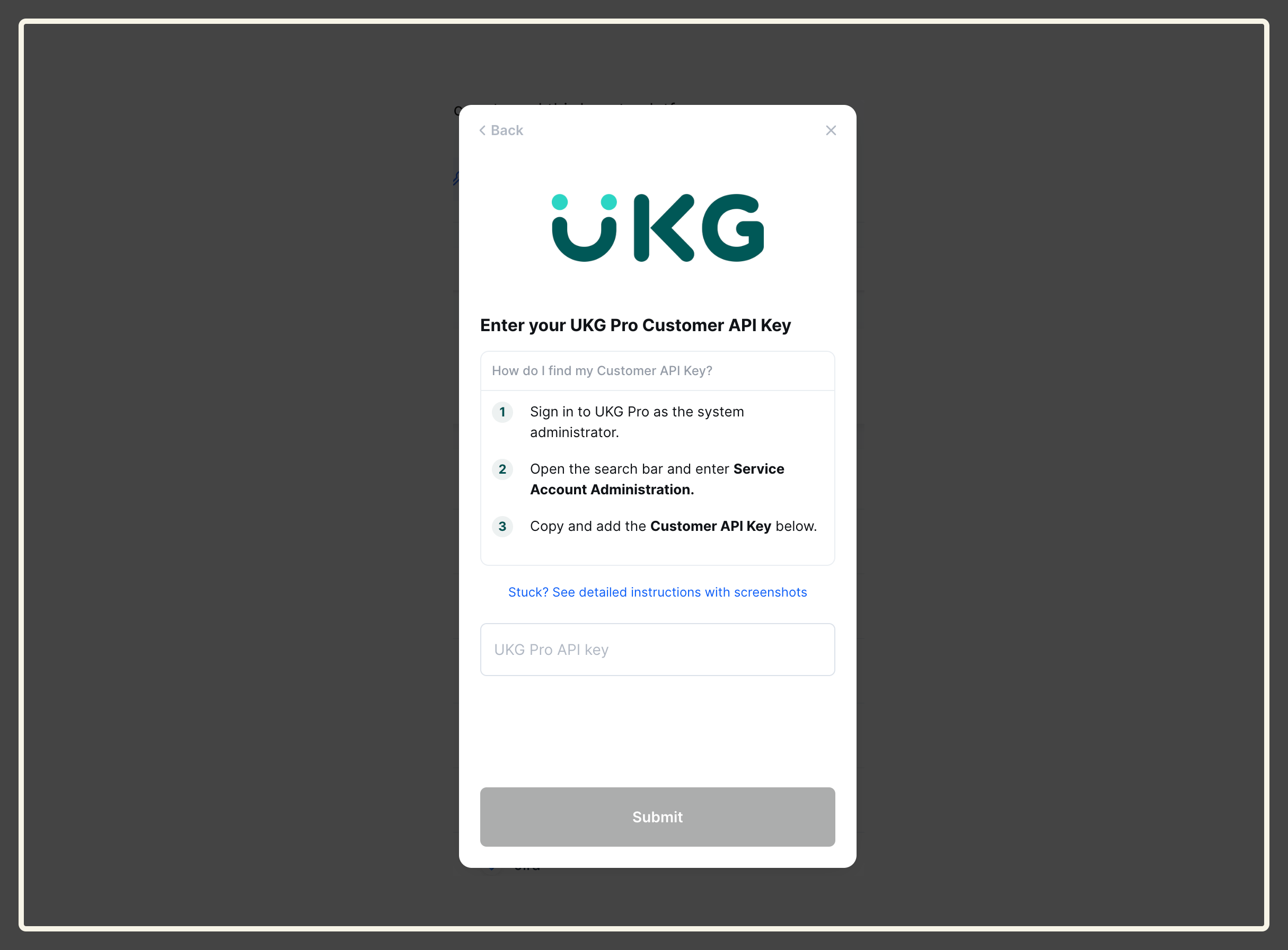
Paste the Customer API Key in the linking flow
Step 2: Create your service account
On the Service Account Administration Page, click "+ add" on the top right
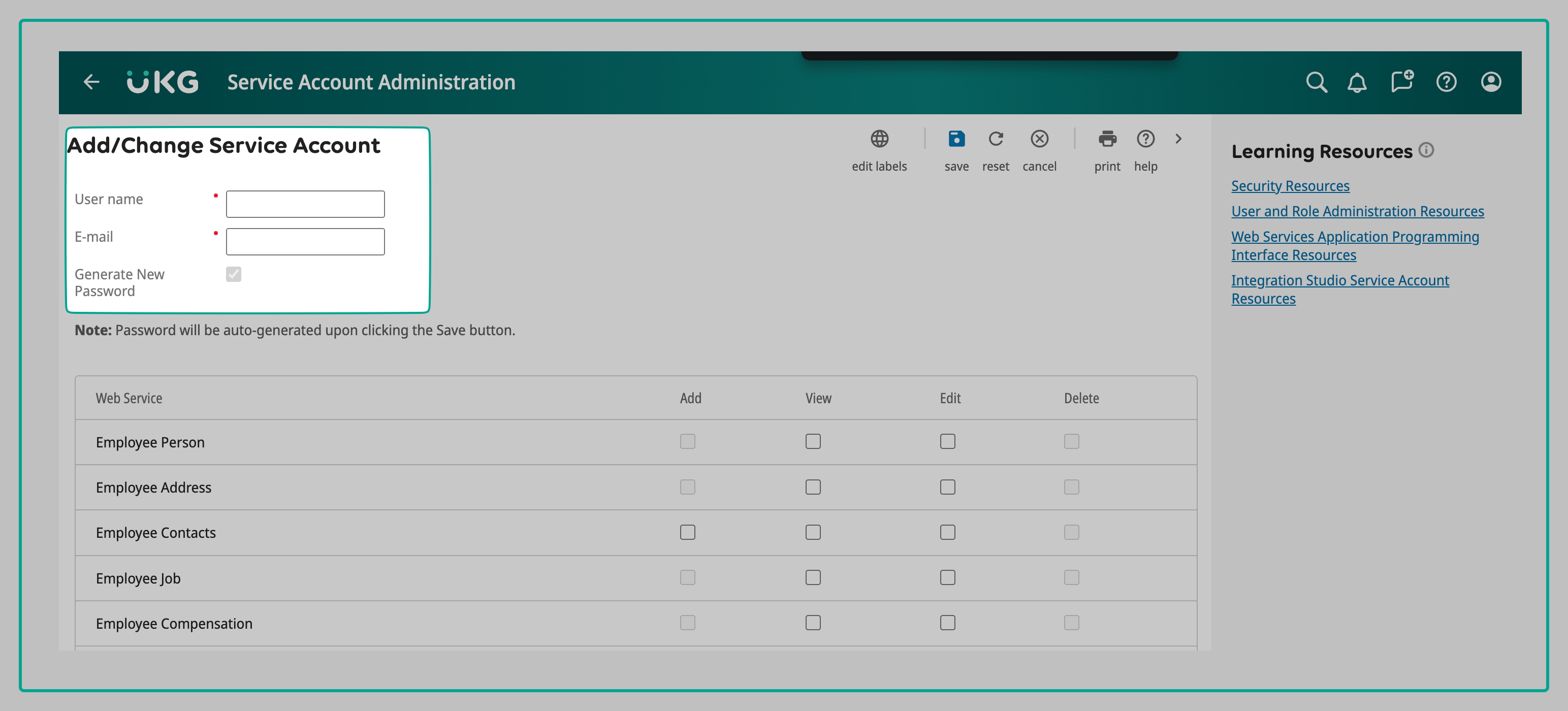
Create a new username and email for your service account.You will need the username later
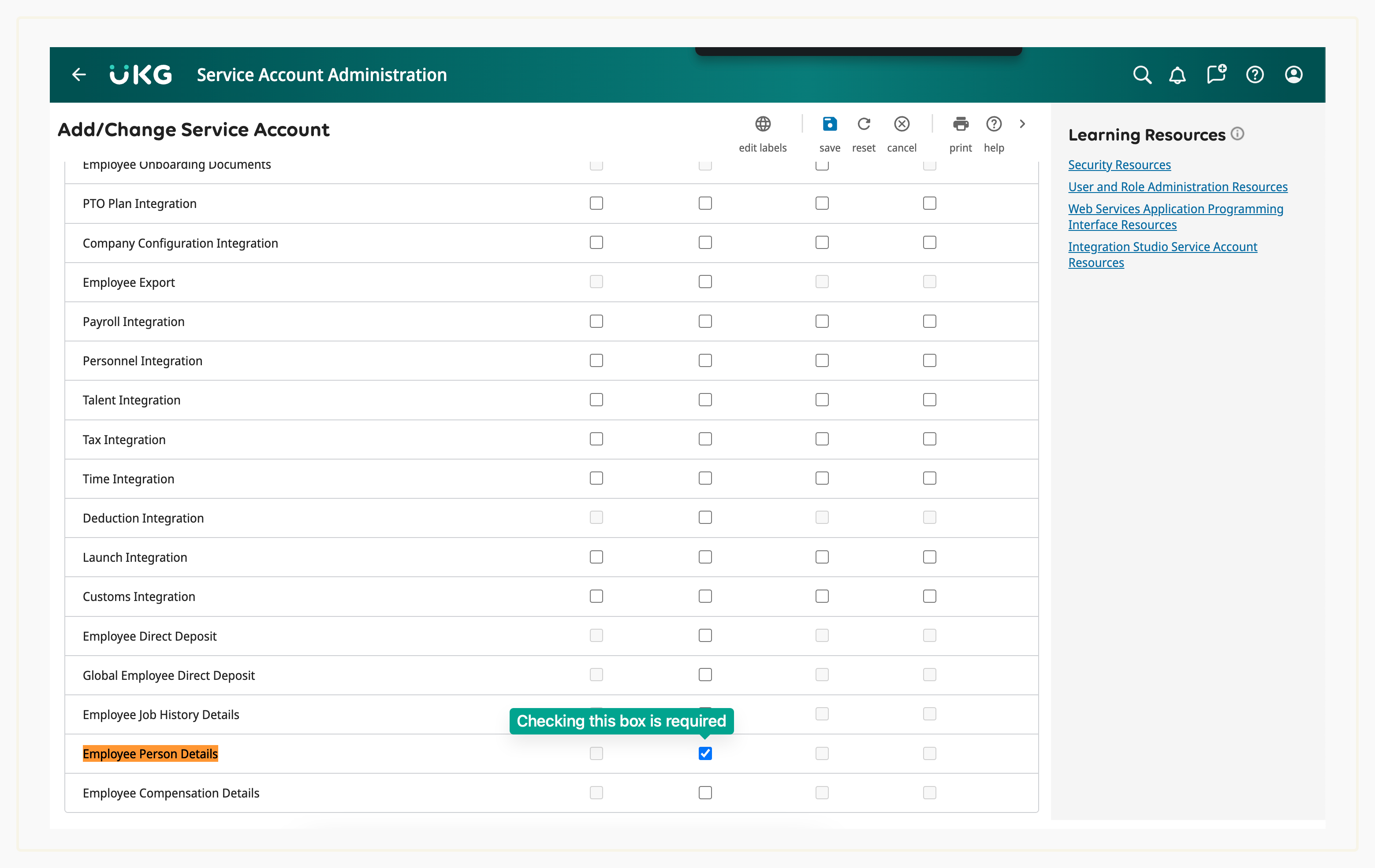
On the same page, scroll down under Web Service to enable "View Employee Person Details". This is REQUIRED.
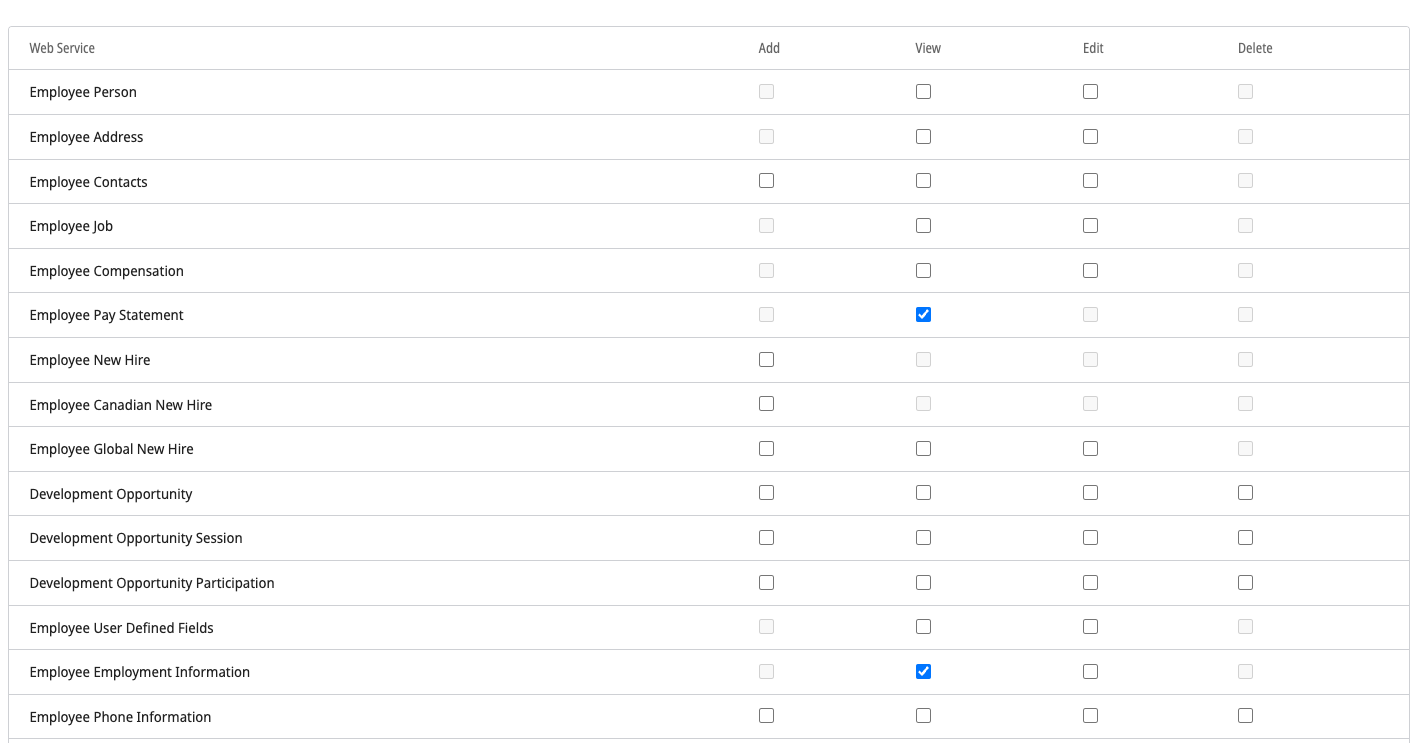
Depending on the use case, you may also be required to add some, or all, of these permissions:
Employee Pay Statement
Employee Employment Information
PTO Plan Integration
Company Configuration Integration
Payroll Integration
Personnel Integration
Employee Job History Details
Employee Compensation Details
Employee User Defined Fields
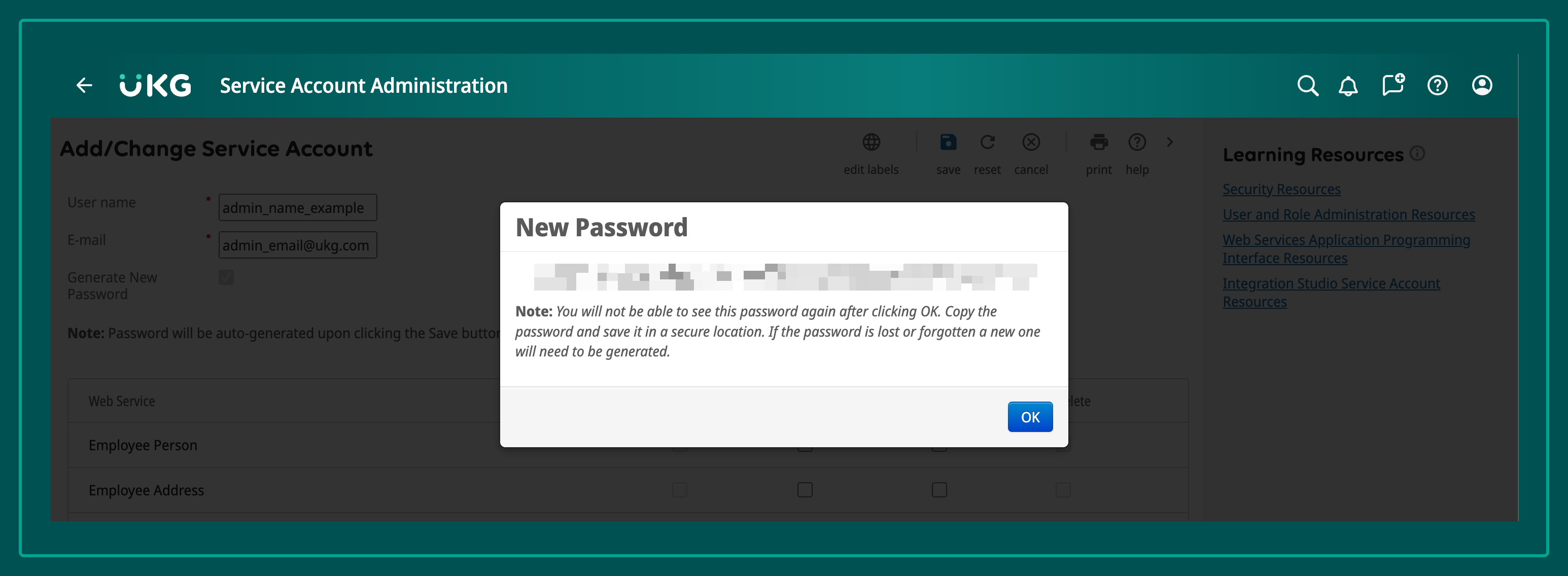
Click Save. Your new password will pop up. Save the password in a secure location
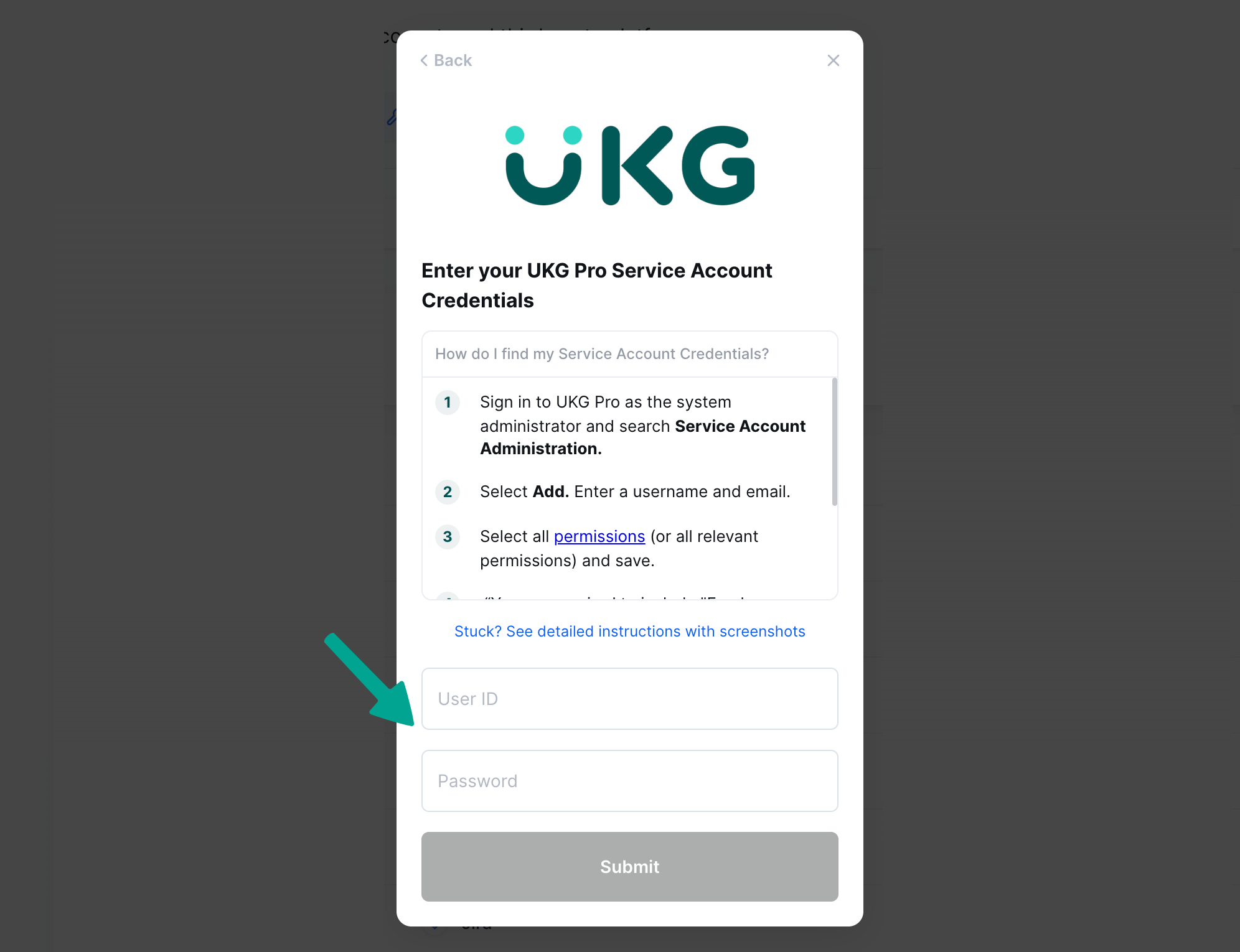
Enter your UKG Pro service account credentials in the linking flow and click Submit. This is user username of your service user and the password you just generated.
Step 3: Finding your UKG Web Service Domain
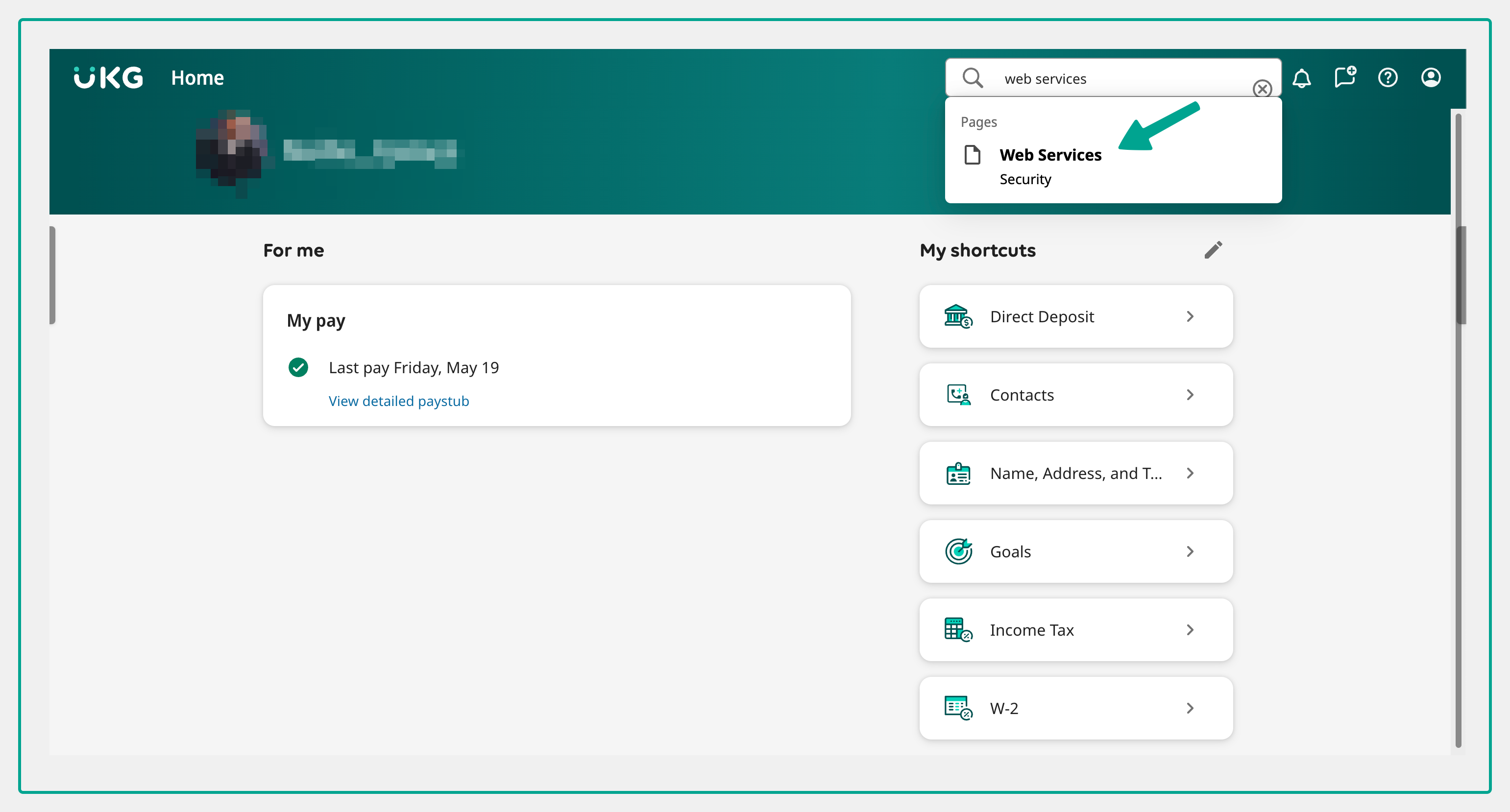
In your search bar, search for Web Services
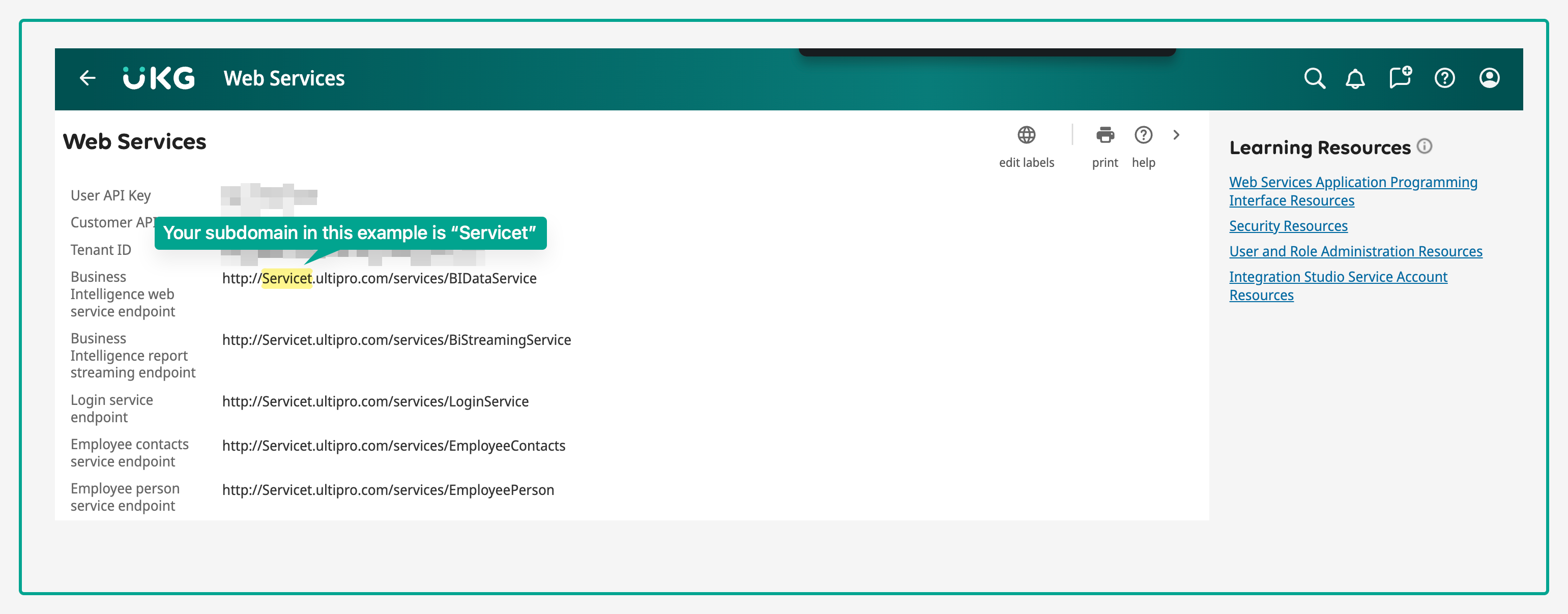
Look at any of the URLs on this page and copy one of them. For example your URL may look something like this: http://Servicet.ultipro.com/services/BIDataService
Enter the URL into the linking modal.