Integration with Microsoft Entra ID
Overview
To authenticate Microsoft Entra ID, you will need to provide the following information:
Tenant ID
This guide will walk you through finding those credentials within Microsoft Entra ID.
Step 1: Click into Azure Entra ID
Log into your Azure Portal and look for the "Azure services" section. Click on "Azure Entra ID".
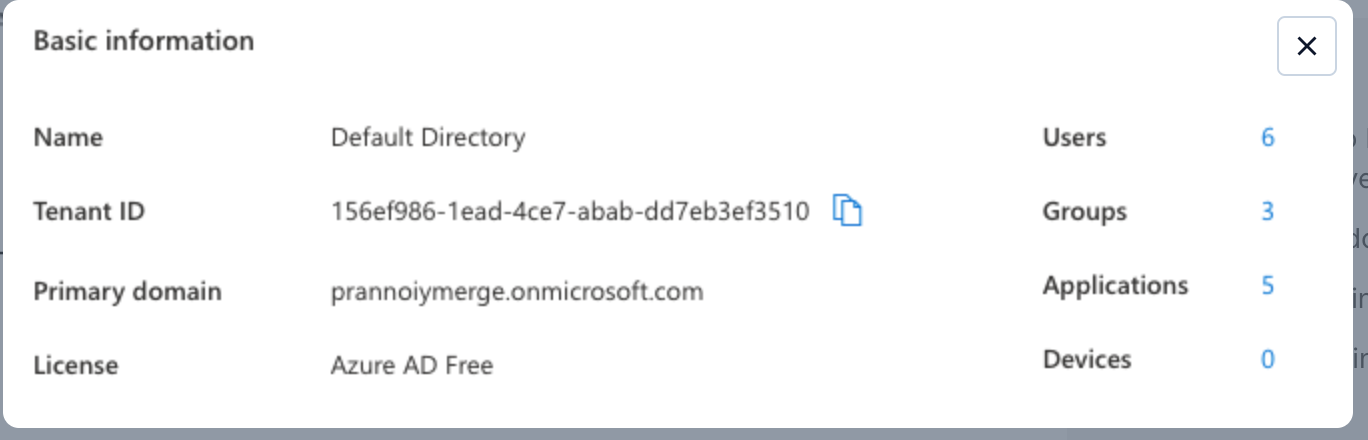
Step 2: Find Tenant ID under "Basic Information"
After clicking on Microsoft Entra ID, you should be able to navigate to the Overview Page which has all the "Basic Information" for your Organization.
Step 3: Open the magic link provided by customer success
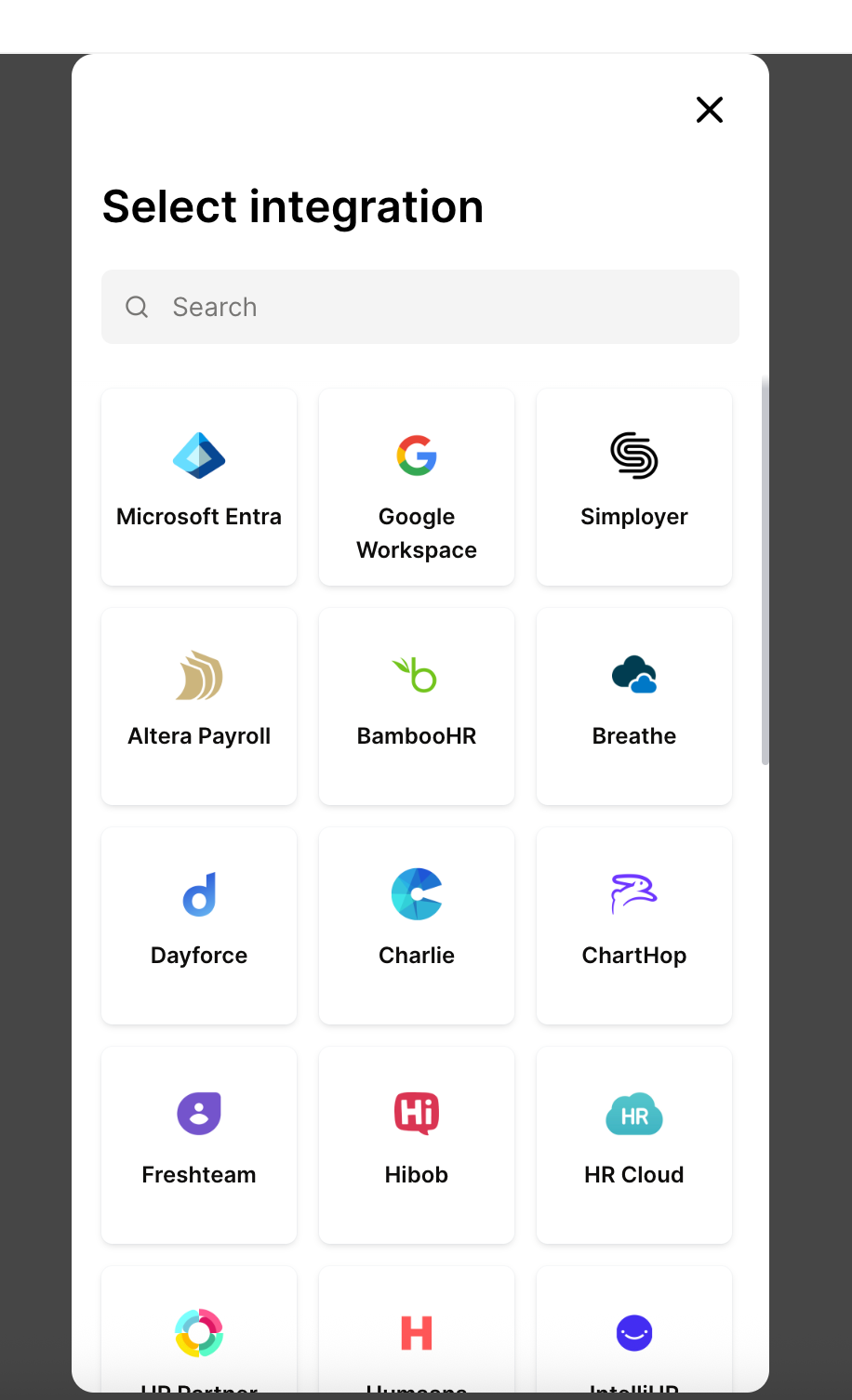
Select Microsoft Entra
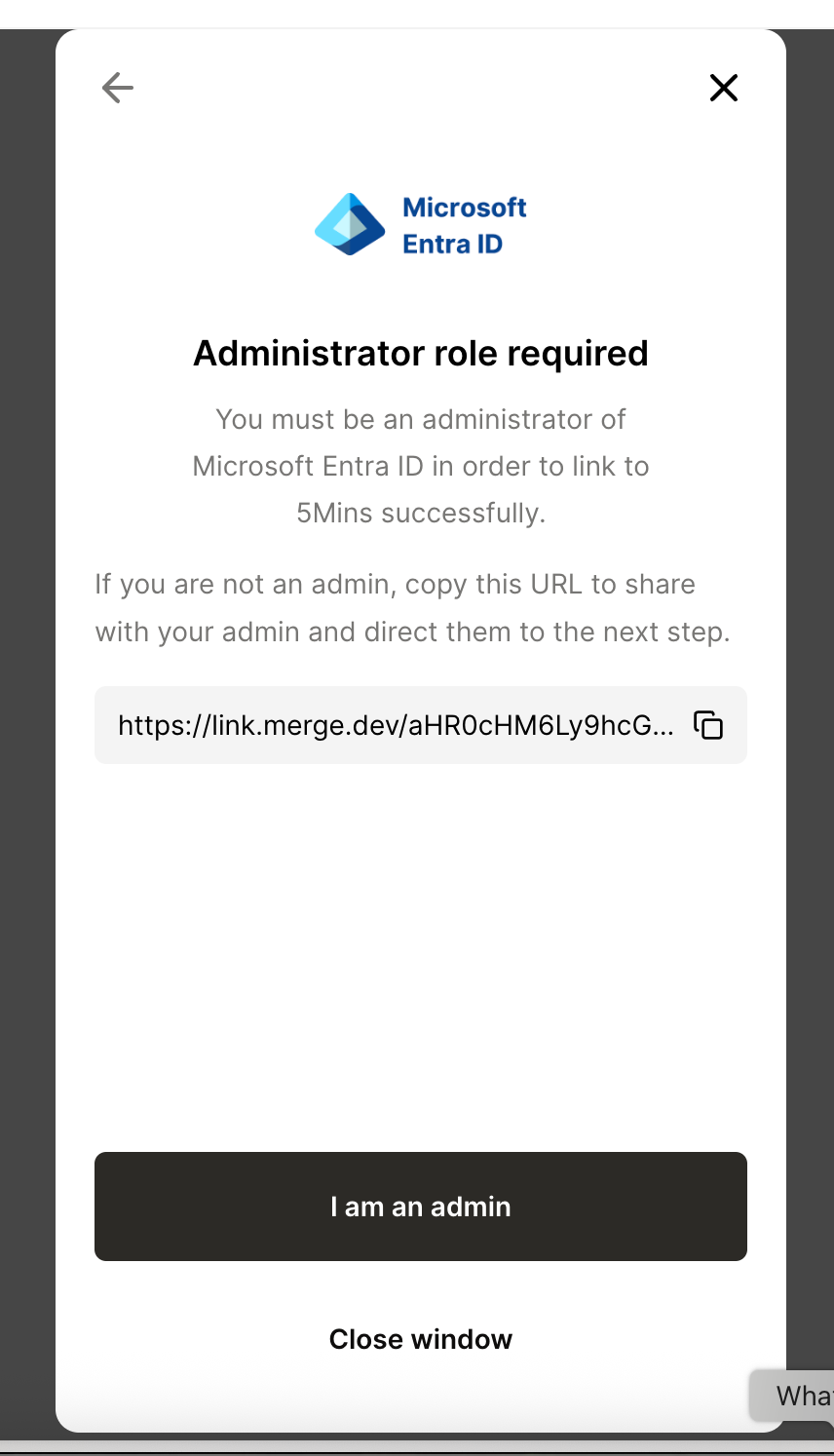
Select ‘I am an Admin’
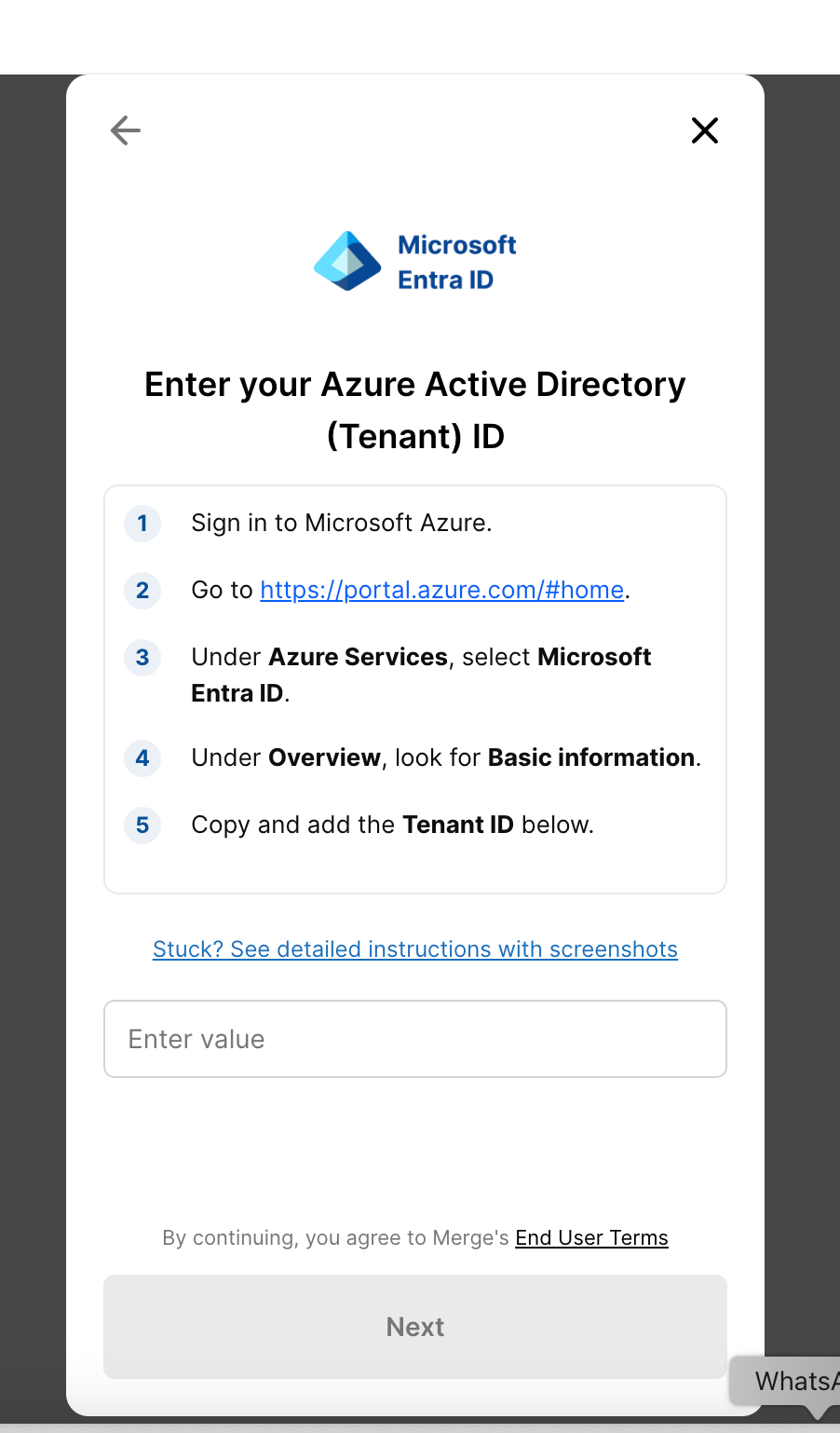
Step 3: Input Tenant ID into the merge magic link flow
Copy and paste the Tenant ID into the linking flow and click Next
Step 4: Login in your Entra ID to give access to 5Mins
Enter your microsoft login credentials (admin on Entra ID)
Allow 5Mins to access Azure Active Directory
That’s it! Your 5Mins instance is linked with Microsoft Entra (Azure Active Directory)!