Creating a Course
🆕 General
Where do I go to create a new course?
A: On Admin - click on the “Create course +” button in the Courses page. On Knowledge Hub - click on “Create new Course”

🎬 Watch this as a short narrated video
Steps shown in this video
- Open Content & Courses → Your Courses in the admin area
- Click Create course
- Give your course a title
- Add a description and thumbnail so learners know what to expect
- Build your outline in Course Content — add lessons from the 5Mins Library, Your Content, or embed links, plus assessments
- Configure availability and completion rules in Settings, then click Create Course
This opens the Course Creation page with four tabs: Details, Course Content, Resources, and Settings.
What are the main steps in creating a course?
You’ll follow these steps:
Fill in course Details (title, description, thumbnail).
Build your outline in the Course Content tab by adding lessons or assessments.
Set preferences in the Settings tab.
Can I edit a course after it's created?
Yes! Click “Edit” on any course. All content and settings will load so you can update them. The “Create Course” button will display as “Update Course”.
Where can I edit the settings on an existing Course?
Once a Course is created, its settings can be updated on its respective Course page:
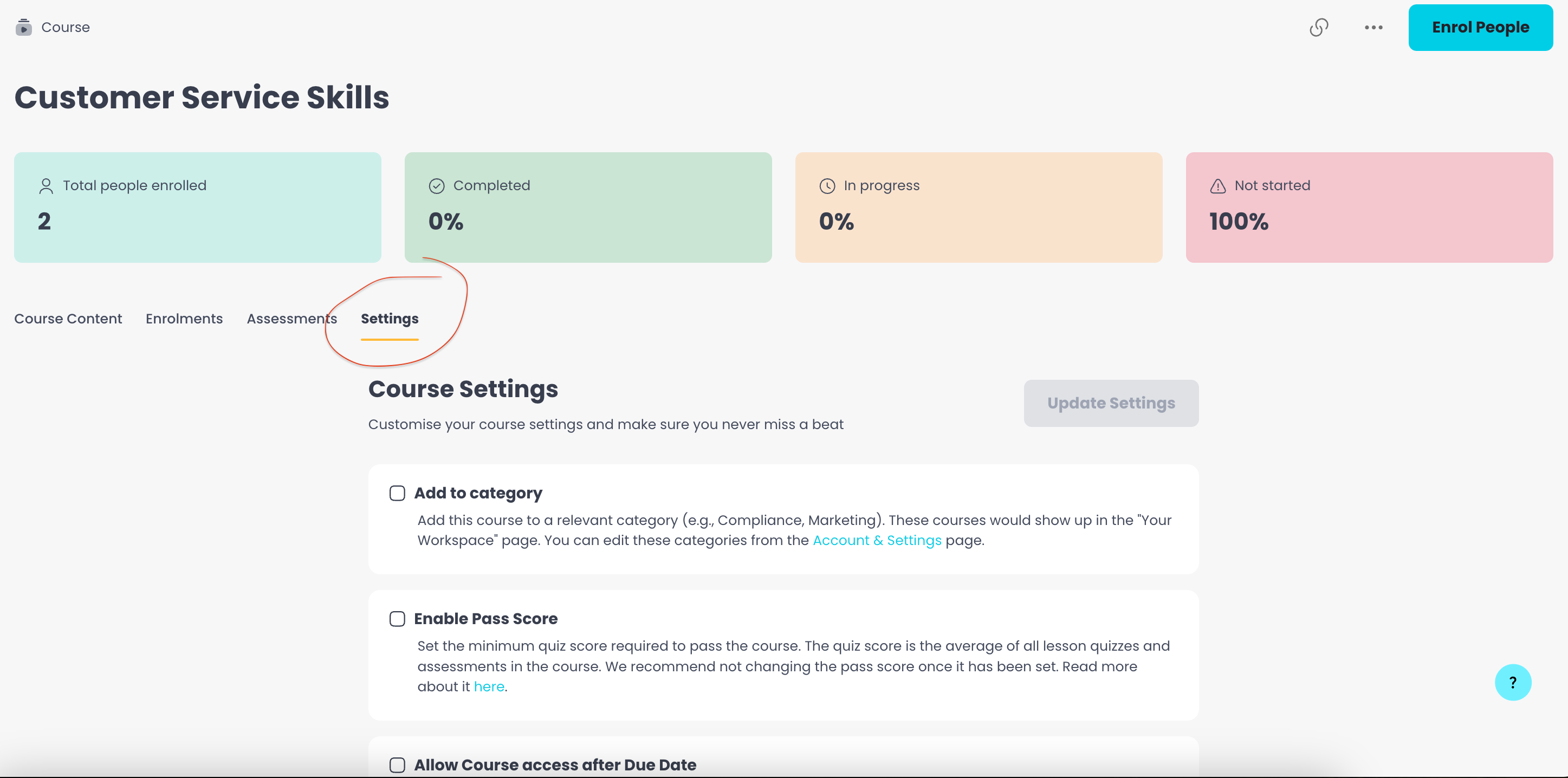
What can I configure in the Settings tab?
You can manage course availability, completion rules, and other preferences here. All course level settings are centralised in this tab.
How do I add a thumbnail to my course?
You can upload an image from your device or choose one from our image library in the Details tab.
Can I skip the course description?
While it’s not mandatory, adding a description helps users understand the course content and purpose.
How do I add lessons to my course?
Use the left side menu to access the 5Mins Library, Your Content, or Embed links. You can search and add lessons directly from there.
I clicked "Upload Content" and was redirected. What do I do next?
A new tab opens the Upload Content page. After uploading your lesson, return to the Course Creation tab — the new lesson should appear in the Your Content list within seconds.
Why is there an empty state in my course outline?
If no lessons have been added yet, you’ll see a banner encouraging you to upload or select content.
What’s the difference between “5Mins Library”, “Your Content” and “Embed Links”?
5Mins Library refers to pre-existing lessons from our curated content.
Your Content includes lessons your team or organisation has uploaded.
Embed Links is a section where you can add web content, which will then show on Your Content section.
How often does “Your Content” refresh?
Every 10 seconds — you’ll see new uploads, including those still processing.
How do I upload a new lesson?
Click the Upload New Lessons link at the top of Your Content. A new tab will open where you may add new lessons.
For external links, you can do also use the Embed Links section.
How do I add assessments to a course?
From the left side menu, choose the type of assessment:
Multiple Choice
Short Text
Exercise
Poll
Each one has its own setup flow.
My newly uploaded lesson isn’t showing up. What should I do?
Wait 10 to 15 seconds for the list to refresh. If it still doesn’t appear, make sure the upload was completed successfully in the Upload Content tab.
Can I reopen a course I just updated?
Yes. After clicking Update Course, you’ll be redirected to the updated course, and a success message will confirm your changes.