Course Categories
Introduction
Course categories help you organize your learning content into logical groups, making it easier for your team to discover relevant courses. This guide explains how to create, manage, and use categories to enhance your 5Mins.ai learning platform.
Getting Started with Categories
Where to Find Categories
As an admin, you can manage course categories in the Customisation section:
Log in to your 5Mins.ai admin account
Click on "Admin" in the sidebar navigation
Select "Account & Settings" from the menu
Navigate to the "Categories" tab
Creating Your First Category
To create a new category:
On the Categories tab, click the "New Category" button
Enter a name for your category (e.g., "Leadership", "Technical Skills", "Compliance")
Add an optional description to explain the category's purpose
Choose whether to use the default category image or upload a custom image
Click "Save" to create the category
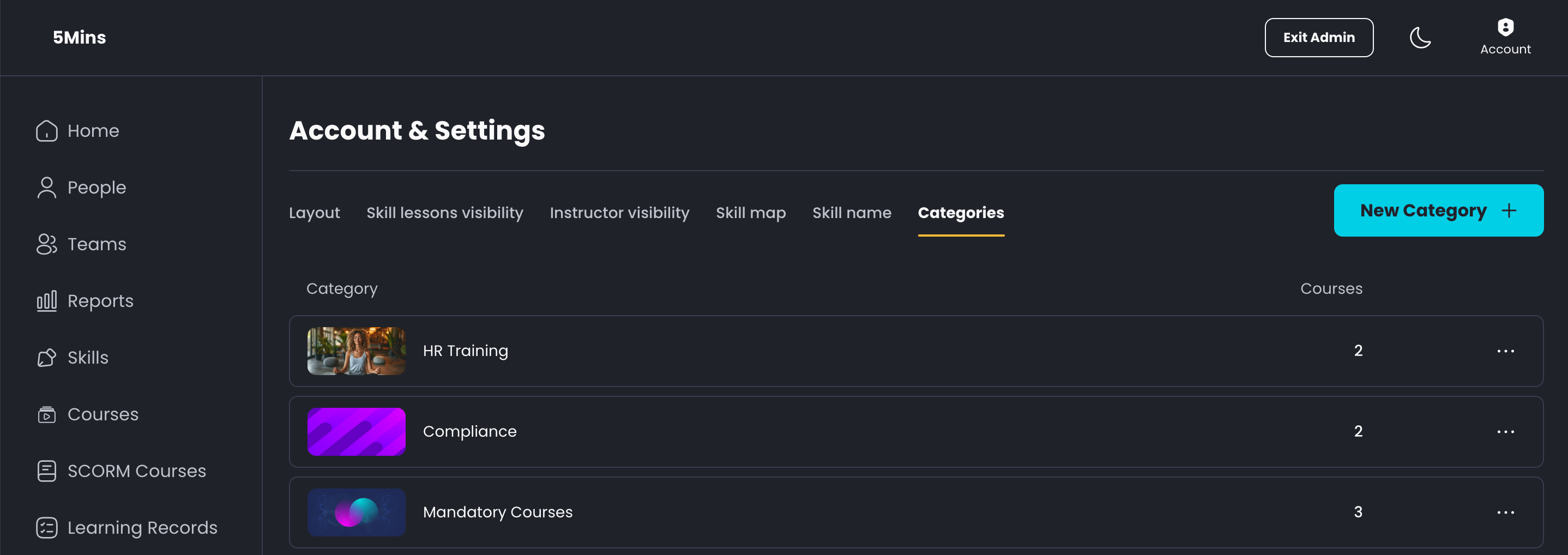
Managing Existing Categories
From the Categories tab, you can:
View all existing categories in alphabetical order
Edit category details by clicking the edit icon
Delete categories by clicking the delete icon (note: this will not delete courses assigned to that category)
Upload custom images for specific categories
Add Courses to Categories
From Course Settings
To assign a course to a category:
Navigate to the course settings page for any course
Find the "Category" dropdown in the course settings
Select an existing category from the dropdown
Save your changes
Creating Categories on the Fly
While assigning a course to a category, you can also create a new category:
Open the "Category" dropdown in course settings
Select "New category"
Enter a name for the new category
Click "Create" to add the category and assign it to the course
How Employees See Categories
Once you've set up categories and assigned courses:
Employees will see category cards on their workspace under "Explore courses from [Your Company]"
Each card shows the category name, image, and number of courses
Clicking a category takes them to a filtered view of courses in that category

Frequently Asked Questions
General Questions
Q: How many categories can I create?
A: There is no strict limit on the number of categories you can create. However, we recommend keeping the total number manageable (typically under 20) to prevent overwhelming your users.
Q: Can I delete a category?
A: Yes, you can delete any category. Courses assigned to that category will not be deleted but will no longer be associated with a category.
Q: How are categories ordered on the user's workspace?
A: Categories are currently displayed in alphabetical order by name.
Q: Can I create subcategories or nested categories?
A: The current implementation does not support hierarchical categories. All categories exist at the same level.
Course Assignment
Q: Can a course belong to multiple categories?
A: Currently, a course can only be assigned to one category at a time.
Q: If I change a course's category, will users be notified?
A: No, changing a course's category happens silently without user notification.
Q: Can I bulk assign courses to a category?
A: The current version does not support bulk category assignment. You'll need to update each course individually.
Customisation
Q: What image specifications should I use for category images?
A: For best results, upload square images with dimensions of at least 300x300 pixels. Supported formats include JPG, PNG, and SVG.
Q: Can I change the default category image?
A: The default category image is system-defined and cannot be changed. However, you can upload custom images for any specific category.
Q: Will changing a category image affect courses already assigned to that category?
A: Yes, changing a category's image will update how that category appears everywhere in the platform, including for all assigned courses.
User Experience
Q: Can users search within specific categories?
A: Yes, when viewing a category, the search function will filter results within that category.
Q: Will empty categories be displayed to users?
A: No, categories with no courses will NOT be visible to users.
Troubleshooting
Q: My category isn't appearing on the workspace. What's wrong?
A: Check that:
You've created the category correctly
At least one course is assigned to the category
You've refreshed the page after making changes
Q: I cannot delete a category. Why?
A: Ensure that you have administrator privileges. If the problem persists, try removing all courses from the category first.
Q: Can I recover a deleted category?
A: There is no built-in recovery for deleted categories. You would need to recreate the category and reassign courses.
Need more help? Contact 5Mins.ai support at support@5mins.ai