Enrolling users into a Course
How do I enrol users into a Course?
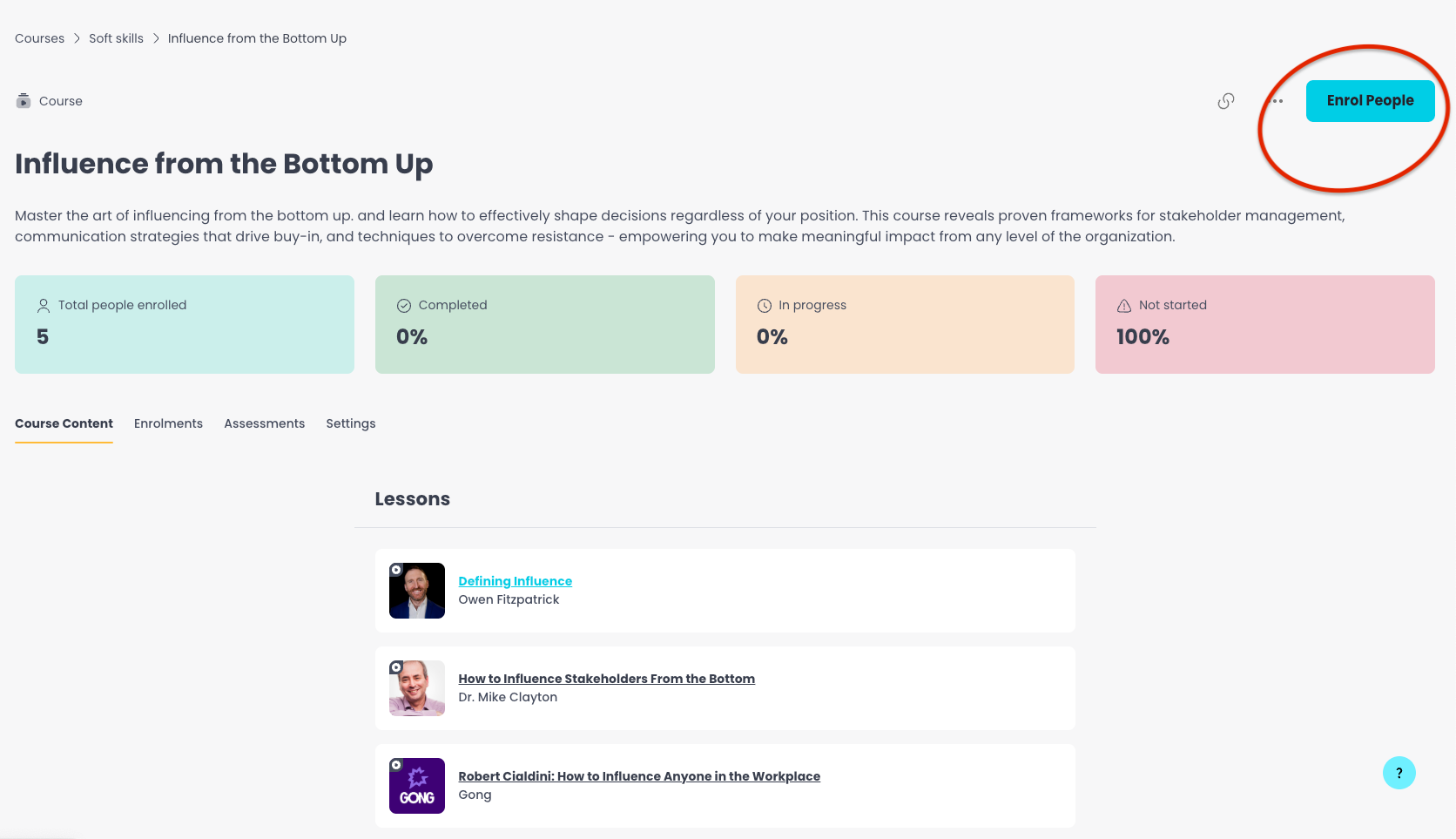
You can enrol users into a Course by clicking the Enrol People button at the top of the Course page.

🎬 Watch this as a short narrated video
Steps shown in this video
- Open Content & Courses → Your Courses in the admin area
- Open the course you want to enrol people into
- Click Enrol People to open the enrolment wizard
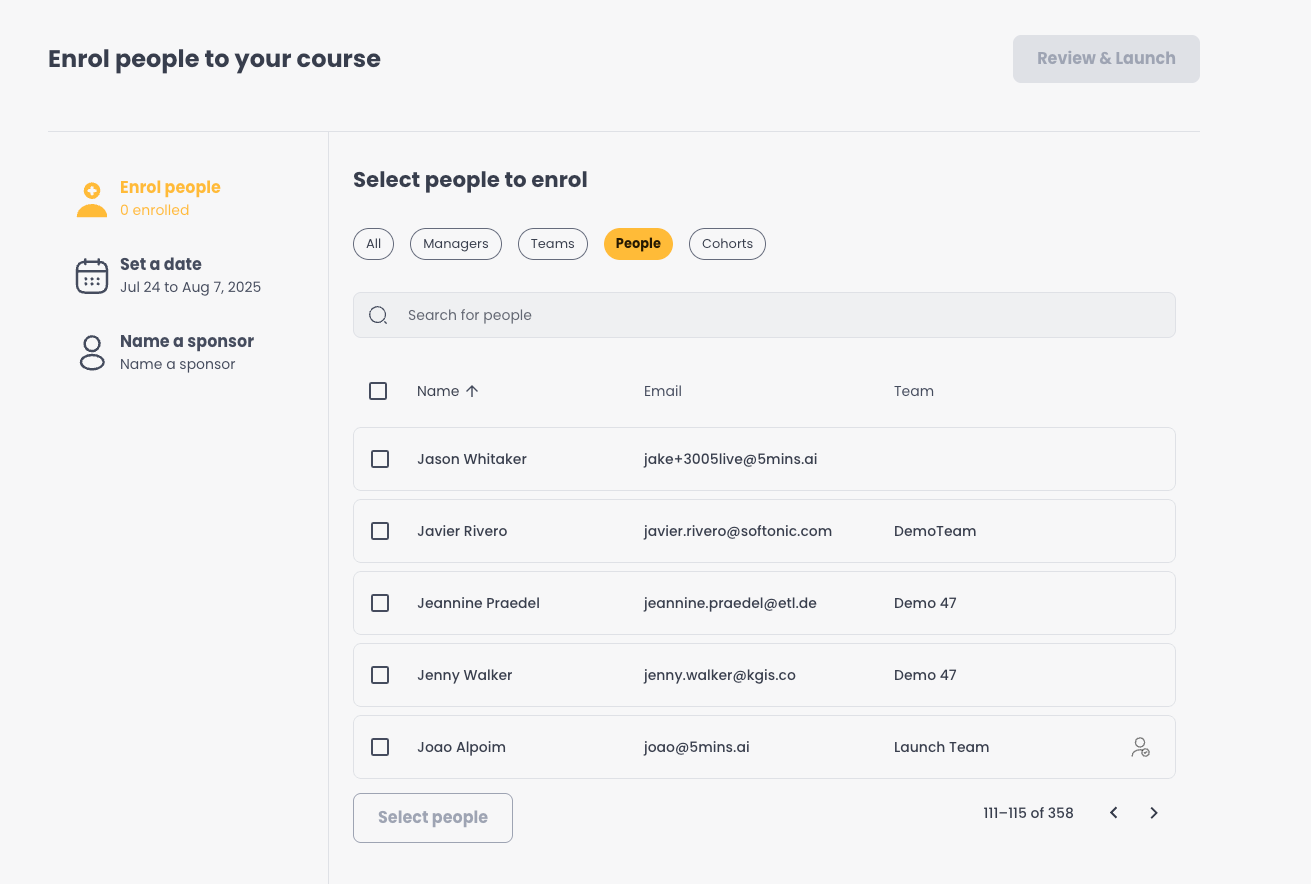
- Choose your audience — individual people, teams, managers, or cohorts
- Select the learners to enrol
- Set the start and due dates — one-time or recurring
- When you're ready, hit Review & Launch — your learners are enrolled and notified straight away
Once opened, you’ll see a list of available users. Simply select the ones you want to enrol, set a start and due date, then click Review & Launch to complete the enrolment.
After submitting the enrolment, I see a message saying “Some selected users are already enrolled.” What does this mean?
This message appears when one or more of the users you've selected are already enrolled in the Course. When a user displays the enrolled icon, it means they currently have an active enrolment.
Continuing will remove their current enrolment and create a new one, which will reset their progress to 0% and set the new start date you've defined.
Before proceeding, you can choose to download the current progress report for those users to keep a record of their existing status.
To go ahead with the update, click Continue With Enrolment.
I have enrolled certain users to a Course, but all the lessons are disabled. Why is that?
This may happen for different reasons:
If the Course’s due date has passed, users won’t be able to access its content. In that case, Admins may extend their enrolment’s Due Date, or allow access to the course after the due date.
The Course is scheduled to start on a future date, making it only available when the start date comes.
Can users start a Course on their own?
Yes, users can choose to self-enrol in Courses they haven’t been enrolled to. By clicking on “Start Course,” they’ll unlock all the lessons and assessments within that Course and appear in the enrolled users list with their start date automatically set.
This enrolment will start with progress 0%, regardless of any other progress made in previous enrolments or outside the course
If a user has been enrolled into a Course, and its due date has expired, can they self-enrol in that course again?
As of now, it’s not possible for users to self-enrol in expired courses. If the admins have changed the settings of courses, they can allow users to access the course even after due date.
How does a user make progress in a Course?
To make progress within a specific Course, users must access and view the lessons directly from that Course page, before its due date. Any lesson progress made outside the Course page, won’t impact on the Course progress %
Where can users access their Courses?
Users can access Courses they’ve been enrolled to by:
Going to their “Your Workspace” page → “Courses created for you” section on the app
Tapping on the mobile app notification they received when enrolled
Opening the course enrolment email
How to unerol a user from a course?
You can select a user inside a course enrolments tab and click on Actions to find Unenrol.
Alternatively, you can also click on three dots menu against each user to find Unenrol.
After you click on Unenrol, you will be asked again to confirm, once confirmed the user would be removed from the course and they would no longer have this course on their workspace.