Course Settings
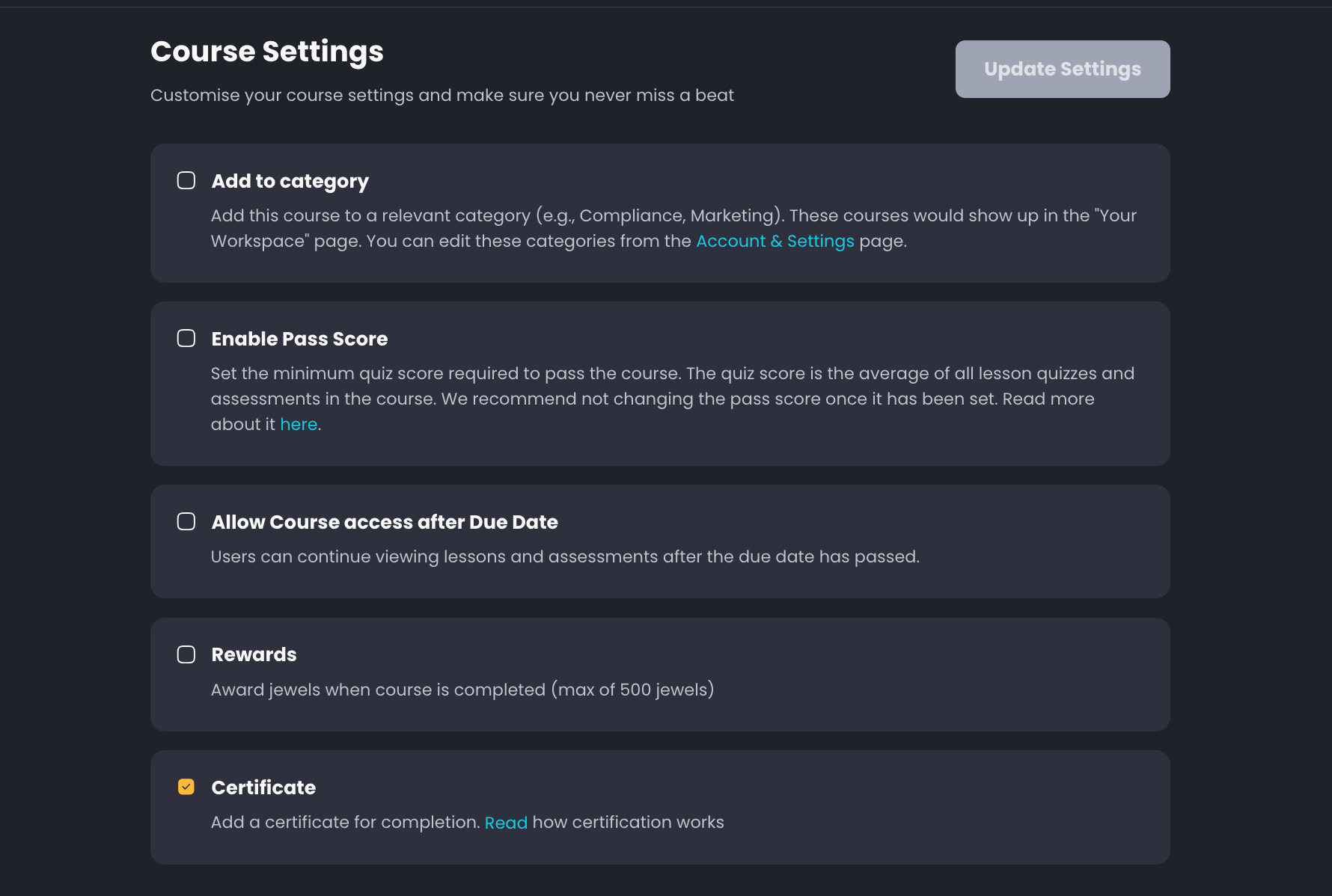
What is the Course Settings feature?
Course Settings allows you to customize your course configuration and ensure learners have the best possible learning experience. You can control access, completion requirements, rewards, and video playback options.
How do I save my course settings changes?
Click the "Update Settings" button in the top right corner of the Course Settings page to save any changes you've made.
Course Organization
Q: What does "Add to category" do?
This feature allows you to organize your course by adding it to relevant categories like Compliance, Marketing, etc. Categorized courses will appear in the "Your Workspace" page, making them easier to find and manage. You can edit these categories from the Account & Settings page. Read about it here
Do I need to categorize my courses?
No, categorizing courses is optional, but it's recommended for better organization, especially if you have multiple courses.
Assessment and Completion
What is the Pass Score feature?
The Pass Score sets the minimum quiz score required for learners to successfully complete the course. This score is calculated as the average of all lesson quizzes and assessments in the course.
Should I change the pass score after setting it?
We recommend not changing the pass score once it has been set, as this could affect learners who are already in progress.
What happens if learners don't meet the pass score?
Learners who don't achieve the minimum pass score will not be able to complete the course and may need to retake the course. They have to contact the admins to be able to re-enrol themselves in courses.
Access Control
What does "Allow Course access after Due Date" mean?
When enabled, this setting allows learners to continue viewing lessons and taking assessments even after the course due date has passed. When disabled, access is restricted after the due date.
Should I allow access after the due date?
This depends on your training requirements. Enable it if you want to give learners flexibility to complete courses at their own pace, or disable it if you have strict compliance deadlines.
Rewards and Certificates
How do course rewards work?
When enabled, learners receive jewels (up to 500 maximum) upon course completion. This gamification feature can help motivate learners.
What is the Certificate feature?
The Certificate feature automatically generates a completion certificate when learners finish the course. Click "Read how certification works" for detailed information about the certification process.
Video Playback Settings
Q: What does "Course must be completed in order" mean?
When enabled, learners must complete each lesson sequentially before unlocking the next one. This ensures a structured learning path.
Should I require lessons to be completed in order?
Enable this if your course content builds upon previous lessons or if you want to ensure learners follow a specific sequence. Disable it if learners can benefit from accessing content in any order.
What is Fast Forwarding?
Fast Forwarding allows learners to skip ahead in videos, giving them control over their viewing experience. This is useful for learners who want to review specific sections or skip content they already know.
Q: What does "Enable Video Playback in Background" do? A: This feature allows learners to continue listening to course videos while viewing other browser tabs or applications, which can be helpful for audio-heavy content or multitasking learners.
Should I enable background video playback?
Enable this feature if your course content is suitable for audio-only consumption or if you want to give learners more flexibility in how they consume content. For better learning outcomes, we recommend to keep background video playback disabled.