Quizzes Re-take
What is the Re-take Feature?
The re-take feature allows learners to retry assessments to improve their scores. You control how many attempts learners get for each course.
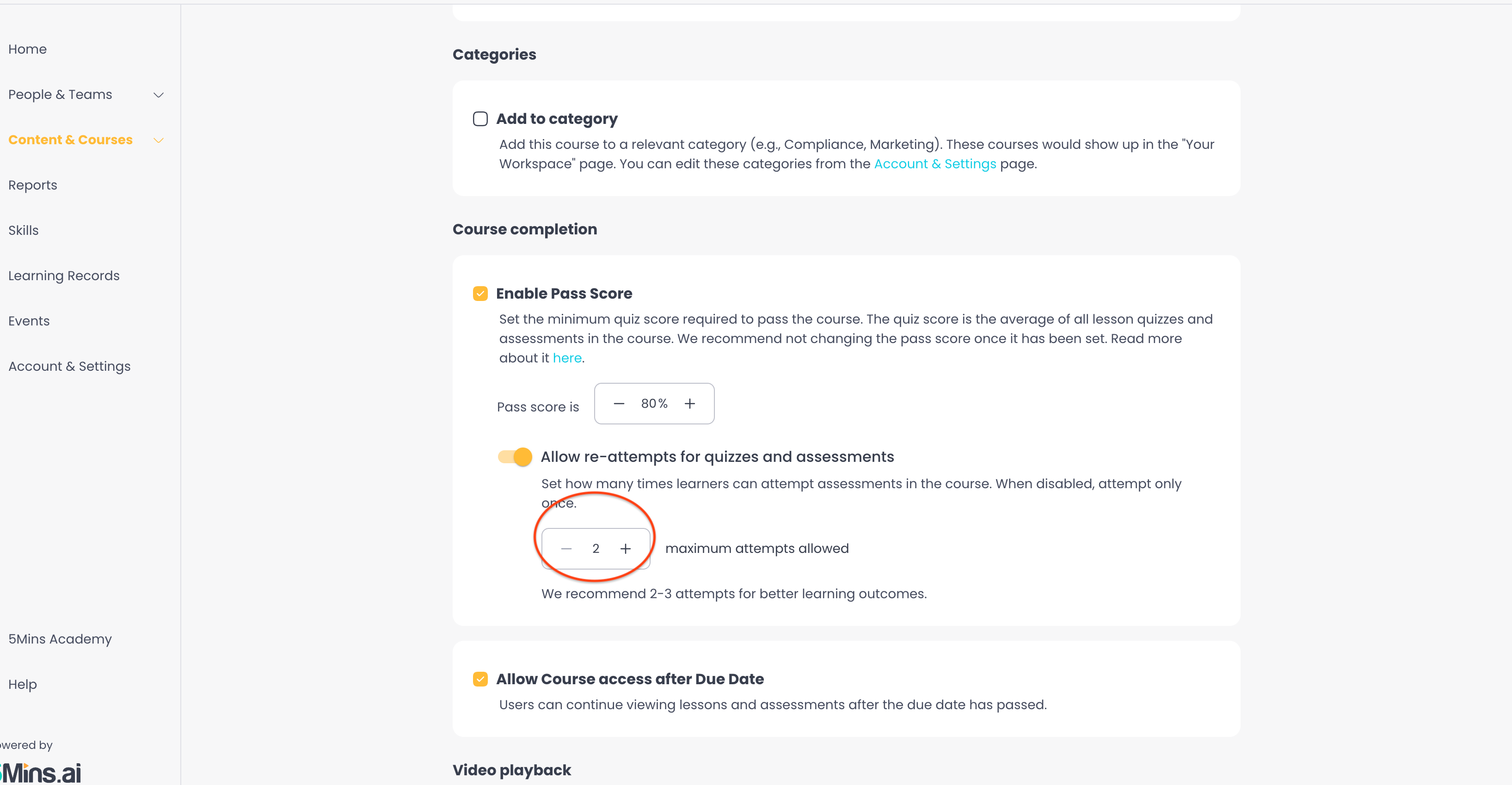
How to Enable Re-takes
Navigate to your course in the Admin panel
Go to Course Settings
Turn on "Enable Pass Score" — the re-attempts option appears directly beneath it
Find "Allow re-attempts for quizzes and assessments"
Choose your configuration:
Toggle OFF = Only one attempt
Toggle ON = Select 2, or 3 attempts
Note: Re-attempts are part of the Enable Pass Score setting. If Pass Score is turned off, the re-attempts option is hidden and learners get a single attempt.
Note: Changes apply immediately to all enrolled learners.
Re-take Behaviour by Content Type
Lesson Quizzes and Situational Tests
Attempts: attempts count per each set of questions. E.g.: After finishing a lesson, the user answers 3 questions. When re-taking, the user will have to answer all 3 questions again.
Questions: Each re-take shows the same questions
Scoring: only latest attempt counts for Score
Multiple Choice Assessments
Attempts: Attempts are tracked per individual question
Questions: Each re-take shows the same questions
Scoring: only latest attempt counts for Score
Text/Poll/File Assessments
Attempts: One submission only (cannot re-take)
Scoring: These don't count toward Course Score
What Learners See
No Attempts
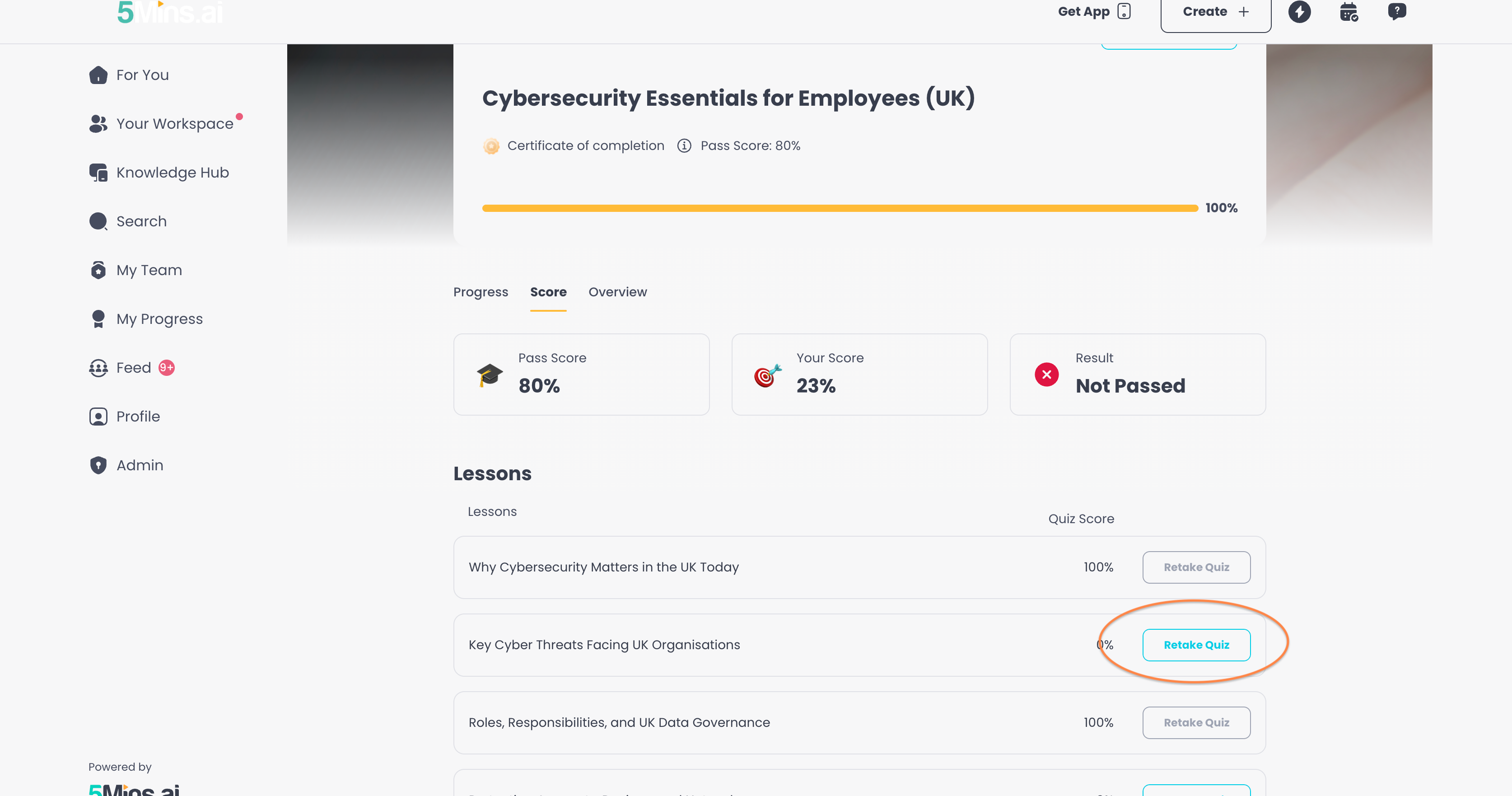
The Retake Quiz is not visible
Limited Attempts
"Attempt 2/3" counter shown during quiz
When exhausted: Button is disabled with message "No attempts left"
On the Score tab, the "Retake Quiz" button will be available if:
The user has not obtained 100% in that quiz / assessment, and,
Not all re-attempts have been used
After Scoring 100%
"Retake Quiz" button disabled
Message: "You already scored 100%"
Common Admin Scenarios
"A learner ran out of attempts but still failed"
Options:
Increase attempts globally: Change course setting to 3 attempts
Review pass score: Consider if the pass threshold is too high
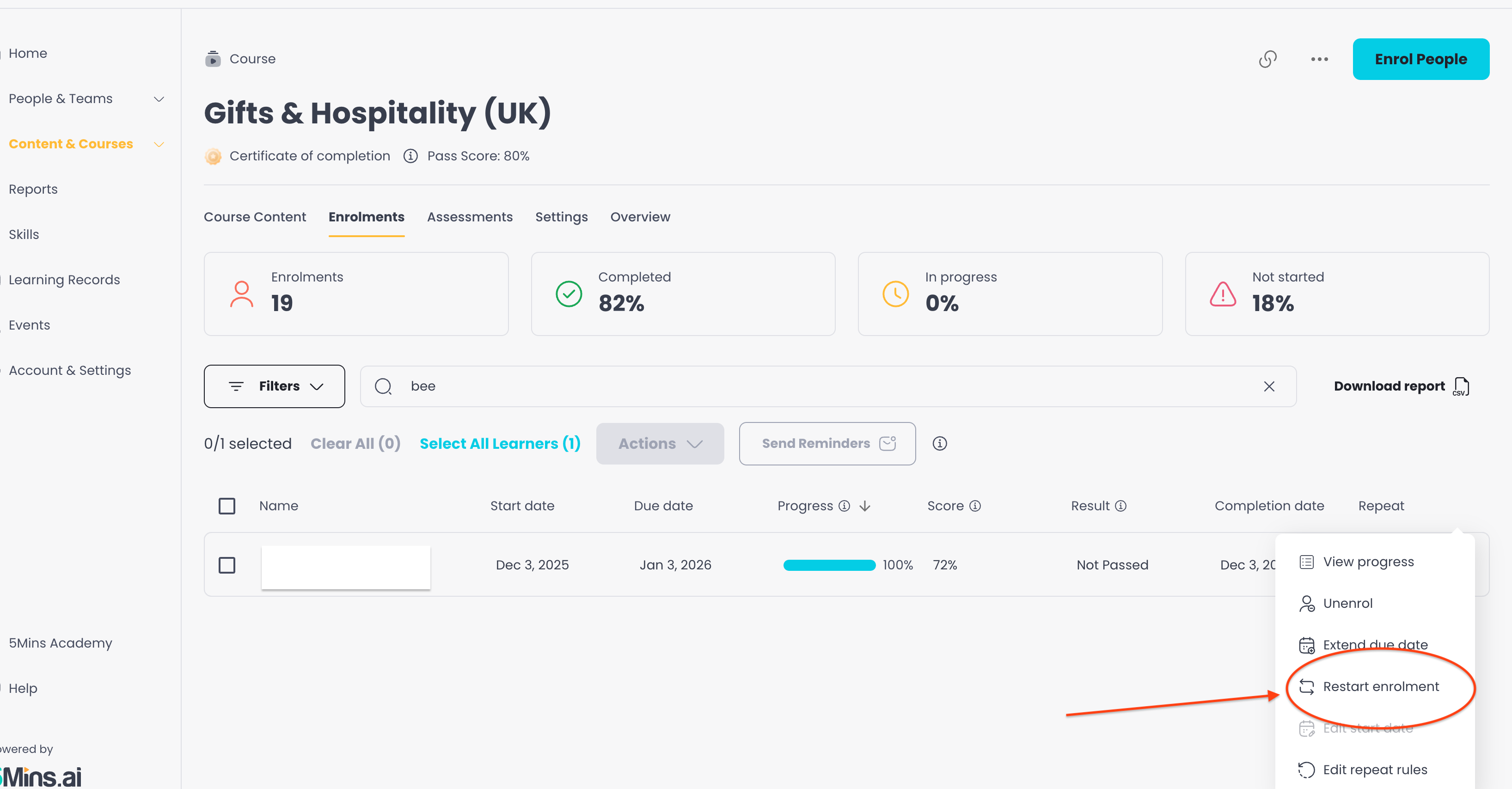
Restart Enrolment: Enrol the user again into that course, so that they can complete it by watching it entirely
"Should I allow attempts?"
Consider:
No attempts: Better for training/development focused courses
Limited (2-3): Better for compliance/certification courses
"How do I see the score on previous attempts?"
Currently, the score shown is only linked to the latest attempt. Previous attempts are overwritten once the user re-takes.
Key Points to Remember
Latest attempt = final score (per question)
Setting changes = immediate effect (all learners)
100% score = no re-take needed (button disabled)
Change attempts mid-course: Yes, updates apply immediately
Pro Tip: Start with 2 attempts and adjust based on learner feedback. You can always increase later!