Check one person's course progress and compliance (Course Progress tab)
See every course one person is enrolled in, switch to Compliance Only, filter the table, and fix due dates or enrolments in bulk.
The Course Progress tab on a person's profile shows every course that person is enrolled in, how far they've got, and whether anything is at risk or overdue. Switch to Compliance Only to check just their compliance training, and fix due dates or enrolments without leaving the page.
🎬 Watch this as a short narrated video
Steps shown in this video
- In People & Teams, click a person's name to open their profile
- Open the Course Progress tab to see every course they're enrolled in
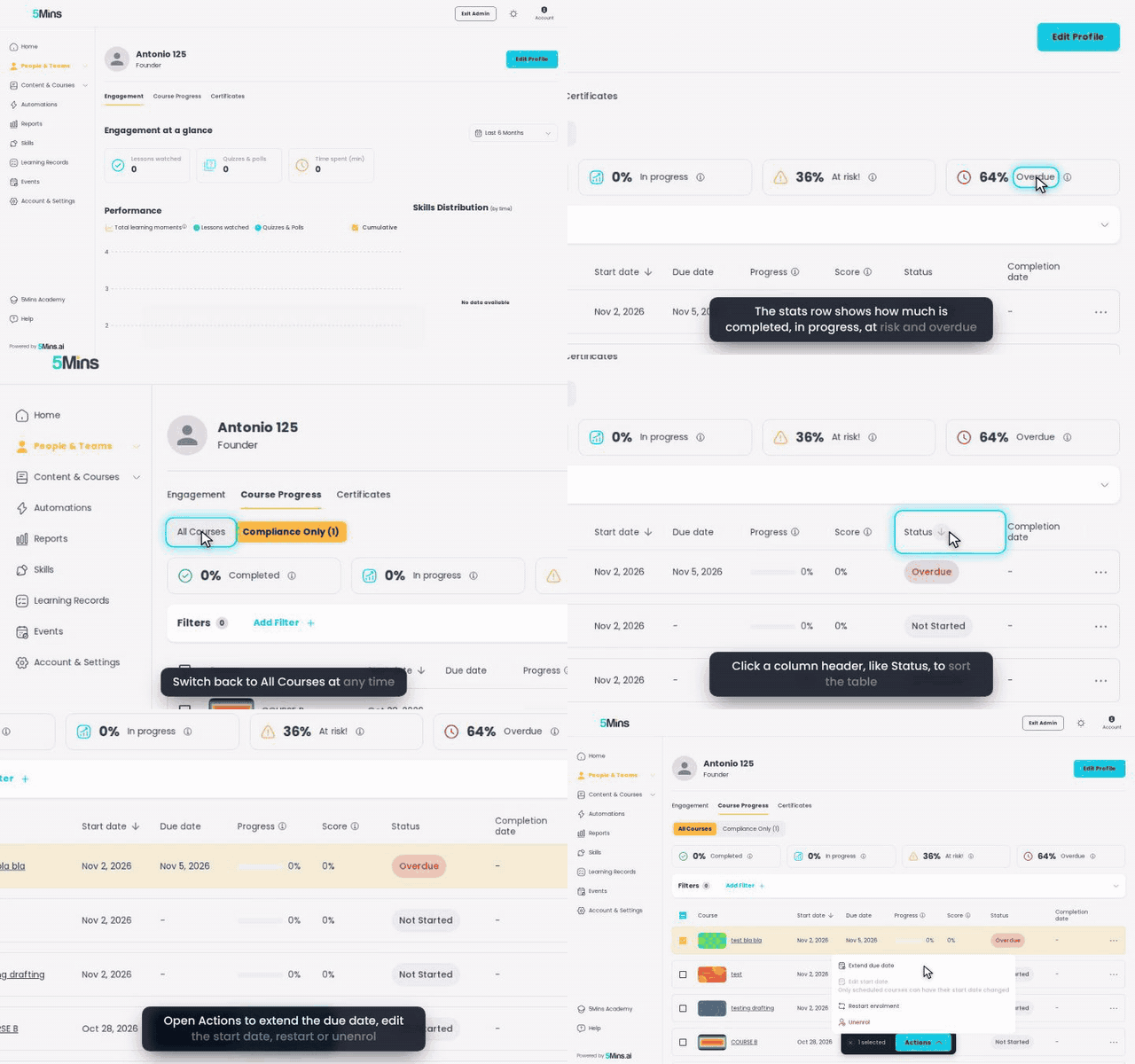
- The stats row shows how much is completed, in progress, at risk and overdue
- Switch to Compliance Only to check just their compliance courses. The table and stats both narrow
- Switch back to All Courses at any time
- Add Filter narrows the table by status, progress, score, dates or course. The stats stay the same
- Click a column header, like Status, to sort the table
- Tick a course to act on it. The header checkbox selects every row your filters return
- Open Actions to extend the due date, edit the start date, restart or unenrol
- Pick an action and confirm it in the dialog. We'll stop here so nothing changes
📍 Where to find it
- Go to People & Teams → People and click the person's name. (You can also click a name in People Insights.)
- The profile opens on Engagement. Select the Course Progress tab, next to Engagement and Certificates.
Who can see it: admins can open it for any person. Managers see the same view when they open one of their direct reports from My Team, and it only ever shows that manager's own reports. For a whole-team view, see Team Course Tracker.
🛡️ All Courses or Compliance Only
At the top of the tab is a two-option switcher:
- All Courses (default): every active enrolment this person has.
- Compliance Only (N): only courses marked as compliance. N is how many of this person's enrolments are on compliance courses.
Compliance Only narrows both the table and the stats row, so the percentages describe compliance training only.
💡 A course counts as compliance when the Compliance course setting is turned on for it. See Course Settings.
📊 The stats row
Four cards show the share of this person's courses in each status:
- Completed: finished 100% of the course and met the pass score, where one is required.
- In progress: started and not yet finished, including courses where quizzes are being retaken.
- At risk!: not started yet, or failed and needing another attempt.
- Overdue: not yet finished and past the due date.
Hover the ⓘ next to each card to see that definition in the app.
📋 The course table
Each row is one enrolment, with these columns: Course, Start date, Due date, Progress, Score, Status and Completion date. Click a course name to open that course.
- By default the table is sorted by Start date, newest first.
- Click the Start date, Due date, Progress, Score, Status or Completion date header to sort by that column.
To learn how progress and scores are calculated, see Progress & Completions.
🔍 Filter the table
Click Add Filter to narrow the table by:
- Status
- Progress (a % range)
- Score (a % range)
- Due date, Start date or Completion date (a date range)
- Course
Filters change only the table. The stats row stays the same, following the All Courses / Compliance Only switcher.
If nothing matches, you'll see No results with a Clear Filters button. Clearing filters keeps whichever switcher option you had selected.
✅ Act on several courses at once
- Tick the checkbox on each row you want. The header checkbox (Select all courses) selects every row your filters return, including rows on other pages.
- A bar appears at the bottom showing N selected. Click Actions:
- Extend due date: choose a Specific date (the same due date for every selected course) or Add days to existing due date (moves each course's own due date by 1–365 days). With Add days, courses with no due date are left unchanged.
- Edit start date: only available when every selected course is Scheduled.
- Restart enrolment: only available once every selected course has started.
- Unenrol: removes the enrolments. If a learning program assigned one of the courses, you'll see a warning that unenrolling also removes it from that program for this learner.
- Click the × on the bar to clear the selection.
⚠️ Changing a filter or the switcher clears your selection, so you never act on rows you can't see.
⋯ Actions for a single course
Click the ⋯ menu at the end of a row to act on that course alone:
- View progress: see the learner's progress through that course.
- Send reminder: only for courses that are In Progress and below 100%.
- Extend due date, Edit start date, Restart enrolment and Unenrol: the same as above, for this course only.
- Edit repeat rules: change how the enrolment repeats. This is greyed out with Managed by automation when an automation controls the repeat.
For more on restarting, see Give a learner another go at a course. For enrolment management across a whole course, see Course Enrolment Management: Admin Guide.
❓ FAQ
Why didn't the percentages change when I added a filter?That's by design. The stats row only follows the All Courses / Compliance Only switcher. Filters narrow the table.
Why does it say Compliance Only (0)?None of this person's enrolled courses has the Compliance course setting turned on.
Why is Edit start date or Restart enrolment greyed out?Every selected course must qualify. Edit start date needs every course to be Scheduled, and Restart enrolment needs every course to have started. The reason is shown under the greyed-out item. Adjust your selection to include only courses that qualify.
Can a manager see someone who isn't their direct report here?No. When a manager opens this view from My Team, it only shows enrolments for that manager's own reports.
Was this helpful?
Still need help? Ask the team