Using Categories for Organising Lessons
Overview
The "Categories for Lessons" feature allows administrators and course creators to organize lessons and courses into specific categories, making it easier for users to find and access related learning material. By grouping content clearly, learners can quickly navigate directly to topics of interest, streamlining their learning experience.
Key Benefits:
Improved organization of courses and lessons
Easier navigation and discovery of related material
Quick visibility into available lesson counts within each category
Flexible management, including creating categories on the fly
Enhanced tracking and management of categorized content
Accessing the Categories Feature
Administrators can access and manage categories from the following locations:
1. Account & Settings Page:
Navigate to Account & Settings in the admin portal.
Select Categories to manage existing categories or create new ones.
Easily view the number of Courses and Lessons within each category.
2. Lessons Page
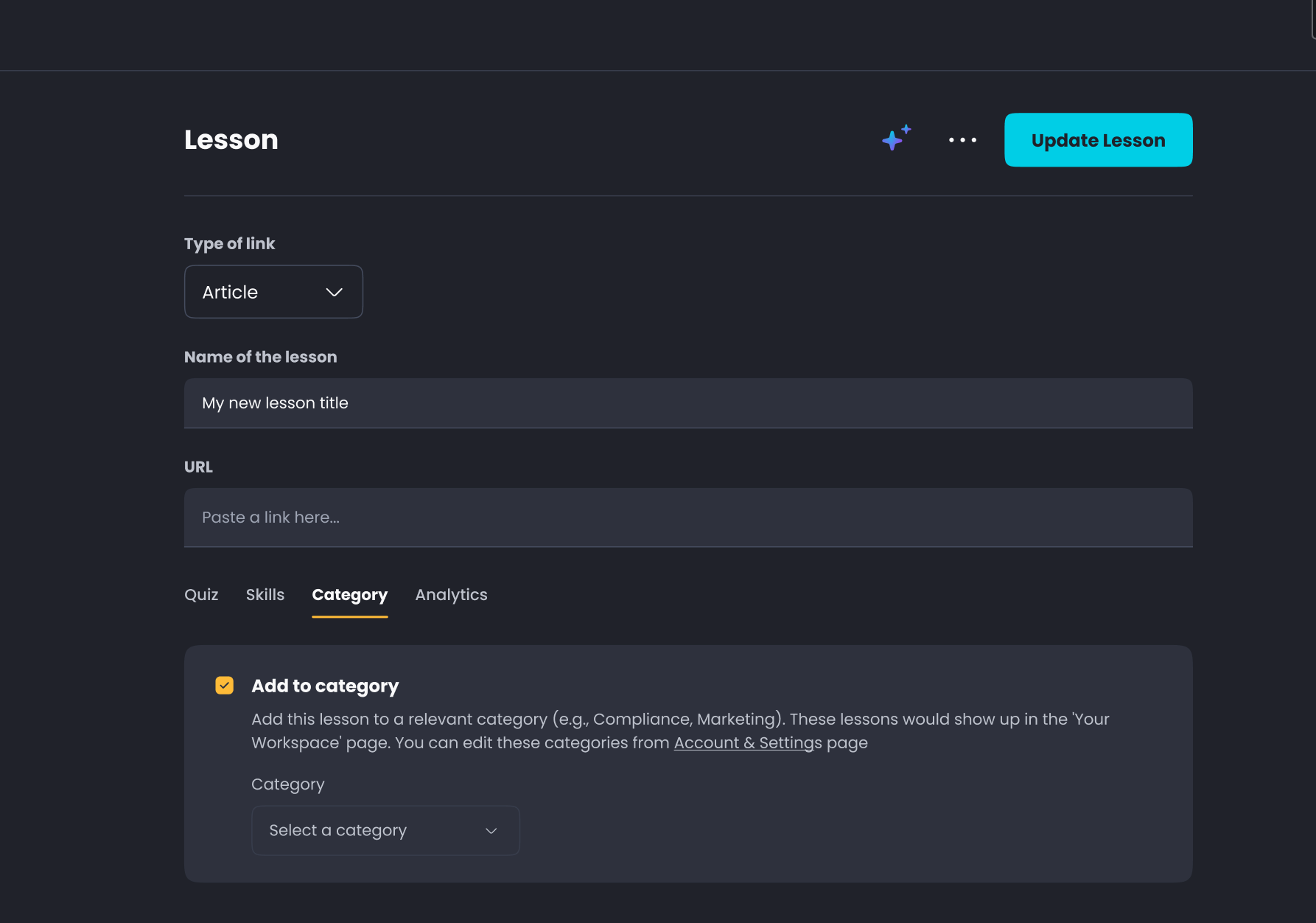
When editing or creating lessons, open the Settings tab
Under the Category section, select existing categories or create a new category on the fly.
User View:
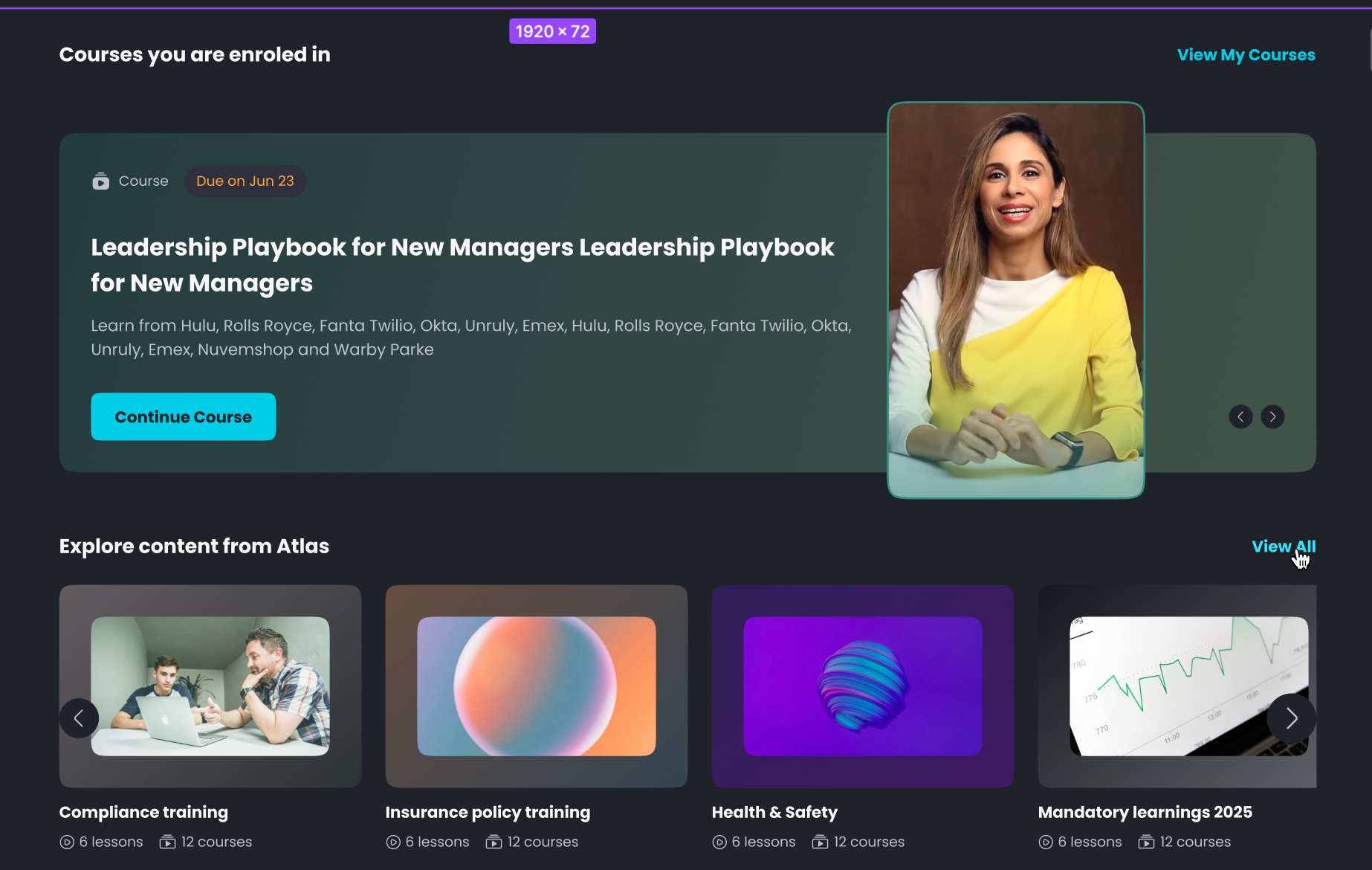
Users see clearly labeled categories on their Your Workspace, each showing lesson counts.
Clicking a category thumbnail displays all courses and lessons within that category.
Users can easily search for lessons or courses by their titles, quickly narrowing down relevant resources.
Frequently Asked Questions (FAQs)
Q1. Who can create and manage lesson categories?
A: Administrators or users with appropriate permissions can create, edit, and manage categories.
Q2. Can a lesson belong to multiple categories?
A: Yes, a lesson can be assigned to multiple categories as needed.
Q3. Can we add categories to the built-in "5Mins" lessons?
A: Currently, categories can only be applied to lessons uploaded by the tenant. Applying categories to the built-in "5Mins" lessons is being considered for future enhancements.
Q4. How can admins see the lessons attached to a particular category?
A: Admins can:
Go to Account & Settings > Categories.
Click the options menu (three dots ⋮) next to the desired category.
Select View Lessons to see a full list of attached lessons.
Q5. Will users see the count of lessons available in each category?
A: Yes, categories displayed on learners' dashboards include the number of lessons and courses clearly beneath each category thumbnail.
Q6. How can users view categories when browsing lessons?
A: Users will see category information clearly displayed within their lesson lists, making it quick and easy for learners to identify and filter lessons by category.
Q7. Is it possible to create new categories directly when creating or editing a lesson?
A: Yes, while creating or editing lessons and courses, administrators can conveniently create new categories directly during the setup process without needing to separately access category settings.
Need Further Assistance?
For additional support, please contact our Product Support Team via the support portal or by email at support@5mins.ai