Editing a User's Profile
As an Admin you can edit people after they've been added to your 5Mins account, so you can fix mistakes or update details without deleting and re-adding anyone. What you can change depends on whether the person has accepted their invite yet.
You can now change a user's email address yourself. This used to require contacting 5Mins support; it's now something Admins can do directly from the People page, for both invited and registered users.
Only Admins can edit user profiles.
Where to edit a user
Go to Admin → People.
Find the person in the list. Their status shows as Invited (not yet accepted) or Registered (accepted and active).
Open the person's three-dot menu and choose Edit user profile.
The Edit Profile drawer opens with their details. Make your changes and click Update Profile.
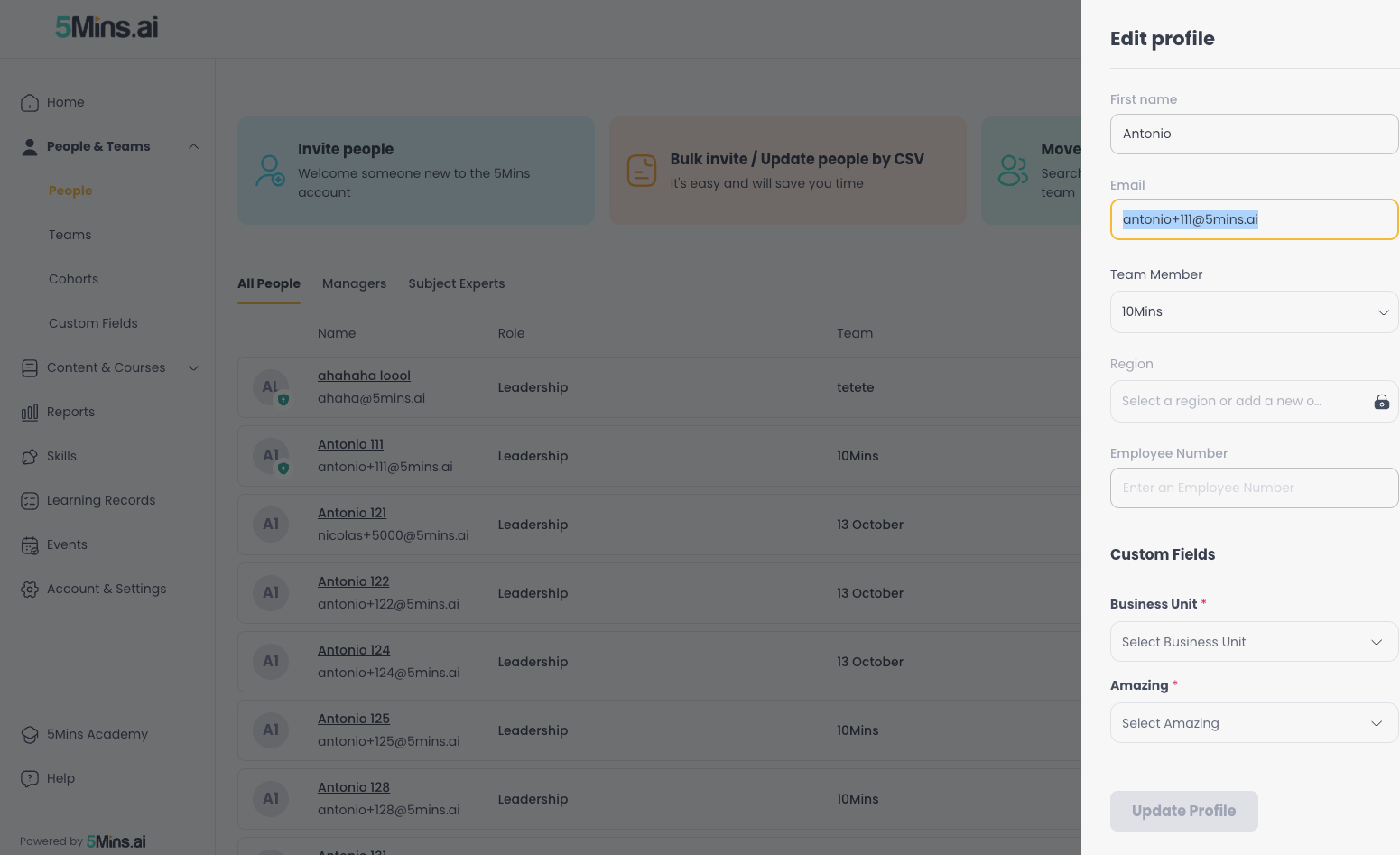
Editing an invited user
For people still in Invited status, you can edit every field on their profile:
First name, Last name, Email
Role, Team, Reports To, Region, Start date
Any Custom Fields set up for your account
Changing an invited user's email
Email is the most common thing to fix on an invite. When you change the email, you'll see an inline warning:
Changing the email will cancel the existing invite and send a new one to the new email address.
When you save:
The original invite is cancelled (its old invite link stops working).
A fresh invite is sent to the new address.
You'll see: "User profile updated successfully. New invite sent to [new email]".
If you didn't change the email, saving just updates the profile and shows "User profile updated successfully".
If the new email already belongs to someone else on your account (invited or registered), the save is blocked and your edits stay in the drawer, with a warning: "[email]: User is already on the platform". Enter a different email to continue.
If the invited person is part of a New Employee automation, any attributes you change (such as role, team, or custom fields) are used by the automation from that point onward.
Editing a registered user's email
For people in Registered status, the profile fields stay locked as before, with one addition: you can now edit their email address.
Open Edit user profile for the registered user.
Update the Email field and click Update Profile.
You'll see "User profile updated successfully".
After saving:
The user can sign in with the new email straight away.
Their previous email no longer works for signing in.
Both addresses are notified: the previous email gets a notice that it's been removed and can no longer be used to sign in, and the new email gets a confirmation that it's now their login email for 5Mins. Each notice tells the user an administrator made the change and to contact their administrator if they weren't expecting it.
Users synced from your HRIS
If a user's account is synced from an HRIS integration, their email field stays locked, with a “Synced from HRIS” tooltip. Update the email in your HRIS instead, and it will update in 5Mins on the next sync.